
Quick Answer: If your service gives you Xtream API credentials, TiviMate can use the server address, username, and password to add the playlist. Enter the credentials exactly as supplied, then distinguish authentication failures from network, server, or EPG problems. Xtream API is one playlist-input method; it is not a guarantee of better speed or reliability.
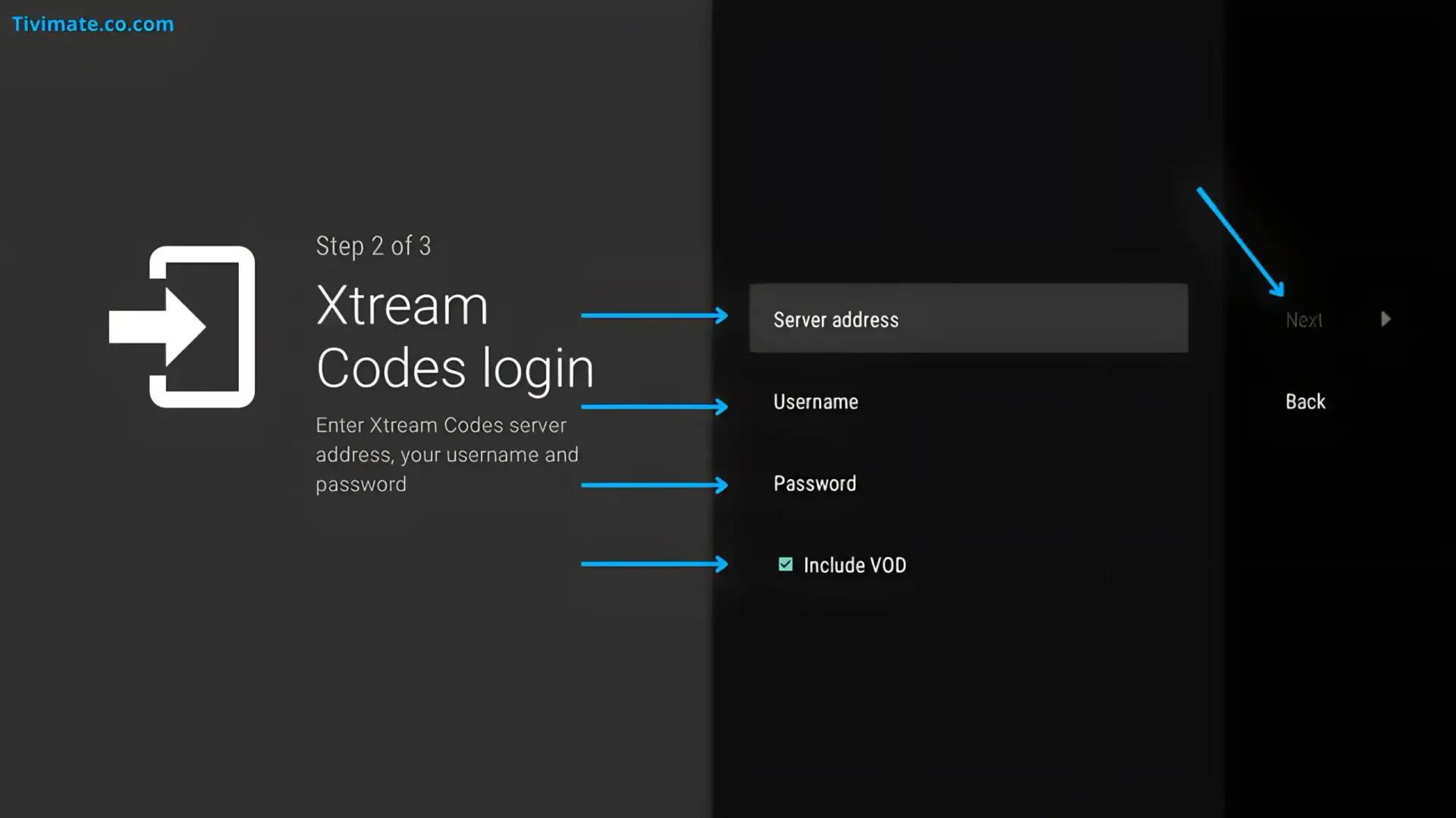
What Is Xtream API in TiviMate?#
Xtream-style API credentials commonly consist of a server address, username, and password supplied by the service providing the playlist. TiviMate can use supported playlist methods to load content supplied by the user's source.
The important distinction is that TiviMate is the player, not the content provider. The official TiviMate site states that users add their own playlists and that TiviMate does not provide the underlying channels or streams. Official TiviMate site
What Information Do You Need?#
| Field | What to enter | Common mistake |
|---|---|---|
| Server | The server address supplied by your service | Changing the URL, port, or protocol |
| Username | Exact username | Extra spaces or wrong capitalization |
| Password | Exact password | Typing or copying an incorrect character |
How to Add Xtream Credentials#
- Open TiviMate.
- Open the playlist management area and choose the supported Xtream/API option shown by your version.
- Enter the server, username, and password exactly as supplied.
- Submit the playlist and wait for TiviMate to process the source.
- Check live channels and EPG separately after the playlist is added.
Menu wording can vary by TiviMate version, so follow the labels displayed on your current installation rather than relying on an exact path from an older guide.
Xtream API vs M3U#
| Method | Typical input | What can differ |
|---|---|---|
| Xtream/API | Server + username + password | How the service exposes categories, guide data, and account information |
| M3U | Playlist URL | Playlist structure and how EPG/source data is supplied |
Do not promise that one method is universally faster, safer, or more reliable. Those outcomes depend on the source service and network path.
Xtream Credentials Not Working: Diagnose the Failure#
| Symptom | First check |
|---|---|
| Authentication fails immediately | Recheck server, username, and password |
| Connection times out | Check device network and whether the server is reachable |
| Playlist loads but channels fail | Compare channel/source behavior separately from login |
| Channels load but EPG is empty | Investigate guide data separately |
| Worked previously and stopped | Check whether credentials, server details, or account status changed |
Check the Credentials Carefully#
- Copy the server exactly as supplied.
- Check for accidental spaces.
- Do not replace a supplied port with a guessed port.
- Do not modify the username or password.
- If credentials recently changed, use the current values supplied by the service.
Check the Network and Server Separately#
If other apps cannot reach the internet, troubleshoot the device network first. If the device has normal connectivity but only one source cannot connect, investigate the source server or credentials.
A VPN can change routing, so if you use one, comparing the same source with and without the VPN can provide evidence. It does not by itself prove that the source or ISP is blocking the connection.
EPG Is a Separate Layer#
A successful playlist login does not mean every guide-data component will necessarily work. If channels load but the EPG does not, troubleshoot guide data separately rather than deleting the entire playlist.
Security and Account Handling#
Treat Xtream credentials as account credentials. Do not publish them in screenshots, public posts, repositories, or support requests where other people can access them. TiviMate's Terms state that users are responsible for the content they add and that TiviMate does not provide or control third-party content. TiviMate Terms of Use
Where Categories and EPG Come From#
When you add an Xtream playlist, the service also supplies how channels are grouped and, often, the guide data that populates the EPG. That is why a successful login can still leave the guide empty: the categories and EPG arrive through a separate data path from the authentication step. If channels load but the guide is sparse, troubleshoot guide data rather than deleting the playlist. See our EPG setup guide.
Re-adding a Playlist Cleanly#
- Remove the existing playlist instead of editing the server, username, or password in place.
- Copy the current details from your service, watching for stray spaces or line breaks.
- Re-add using the Xtream/API option and submit.
- Confirm live channels load, then check the EPG separately.
Editing in place can leave old values behind, so a clean re-add removes that possibility when authentication keeps failing.
Xtream vs M3U: What to Expect#
| Aspect | Xtream / API | M3U |
|---|---|---|
| Input | Server + username + password | Playlist URL |
| Categories | Usually supplied by the service | Depends on playlist tags |
| Guide data | Often included by the service | Often needs a separate EPG source |
Neither method guarantees better speed or reliability; both deliver whatever the source provides.
Keeping Credentials Safe#
Xtream credentials are account credentials. Do not paste them into screenshots, public posts, or shared documents, and keep a backup so a re-add never costs you your wider setup.
FAQ#
What are Xtream Codes in TiviMate?#
They are commonly used as an API-style playlist login consisting of a server address, username, and password supplied by a source service.
Why are my Xtream credentials not working?#
Check the exact server, username, and password first. If those are correct, distinguish a server/network problem from an authentication problem.
Does Xtream API guarantee better performance than M3U?#
No. The input method does not guarantee a particular playback speed or reliability. Source and network conditions still matter.
Can I use the same credentials on multiple devices?#
That depends on the terms and connection rules of the service supplying the credentials. Check its current account limits rather than assuming a universal device count.