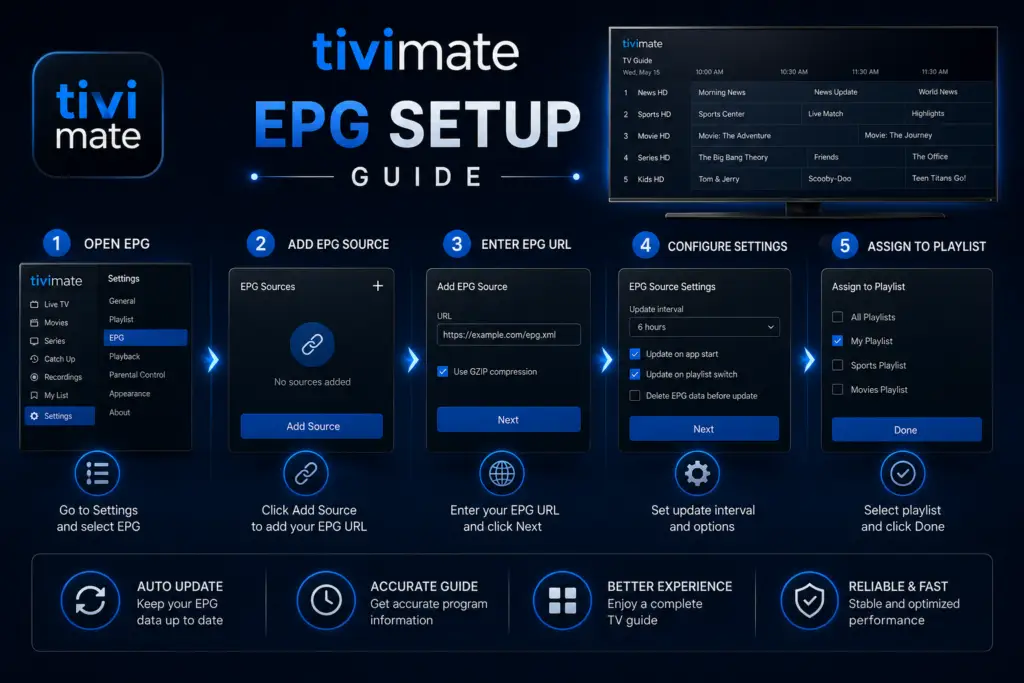
Quick Answer: To set up EPG in TiviMate, go to Settings → Playlists → select your playlist → EPG → Add EPG Source. If your provider uses Xtream Codes API, the EPG populates automatically. For M3U users, paste your provider’s EPG URL and set the correct timezone. If you see “No Information,” update the EPG manually or check that the URL is correct.
TiviMate EPG setup is essential for a working TV guide. If your TiviMate guide shows “No Information” on every channel, you are missing an EPG source. This TiviMate EPG setup guide walks you through every method. EPG (Electronic Program Guide) is the TV schedule — it tells TiviMate what is playing now and what is coming up. Without it, the guide is just a list of channel names.
The good news: setting it up takes about 2 minutes once you have the right URL. Here is exactly how to do it, what to do if it breaks, and how to get the most out of your TV guide.
Key Takeaways — Skip to What You Need
- Quick fix (90% of issues): Go to Settings → Playlists → Update EPG. Wait 3 minutes. Still blank? Check if an EPG URL is configured under EPG Source.
- Most common cause: No EPG URL is set, or the URL your provider gave you is wrong or expired.
- Easiest method: Use Xtream Codes login — EPG is included automatically, no URL needed.
- Channel mismatch: If some channels show data and others do not, the channel IDs do not match the EPG source. Fix with channel mapping in Premium.
- Wrong times: Adjust the time shift offset in Settings → EPG → Time shift.
TiviMate EPG Setup: What EPG Actually Is
EPG stands for Electronic Program Guide. It is the TV schedule data that TiviMate downloads and displays in the guide view. When it is working, you can see what is on right now, what is coming up next, and browse a full week of programming — all from within TiviMate.
TiviMate does not generate this data itself. It fetches EPG from a URL you provide. That URL usually comes from your IPTV provider or a free public EPG repository. The data is typically formatted as XMLTV (.xml or.xml.gz files).
Method 1 — EPG from Your IPTV Provider (Xtream Codes)
Start here. Most paid IPTV providers include EPG automatically, especially if you connected via Xtream Codes API. Check if it is already set up:
- Open TiviMate → Settings → Playlists
- Tap your playlist name to open its settings
- Look for EPG Source — if a URL is already there, go back and tap Update EPG
- Wait 2–3 minutes for the guide data to download
If the guide populates after updating, you are done. If it still shows “No Information”, move to Method 2.
Method 2 — Add EPG URL Manually (XMLTV)
If your provider did not auto-configure EPG, they likely have a separate EPG URL. Check your welcome email, provider dashboard, or ask their support. The URL usually ends in .xml or .xml.gz.
- Go to Settings → Playlists → [Your Playlist] → EPG Source
- Tap Add EPG Source
- Enter the URL your provider gave you
- Tap Save, then go back and tap Update EPG
- Wait 2–5 minutes for the guide to load
Tip: Test your EPG URL in a web browser first. Paste it into Chrome or Edge. If it downloads an XML file or shows raw XML data, the URL is valid. If it shows an error or blank page, the URL is dead.
Method 3 — Free Public EPG Sources
If your provider does not include EPG at all, you can use a free public source. The most reliable is the IPTV-org project, which maintains EPG data for thousands of channels worldwide:
https://iptv-org.github.io/epg/guides/country/CHANNEL.xmlReplace CHANNEL with your provider code. Examples:
- US:
https://iptv-org.github.io/epg/guides/us/directv.com.epg.xml - UK:
https://iptv-org.github.io/epg/guides/uk/sky.com.epg.xml - Canada:
https://iptv-org.github.io/epg/guides/ca/rogers.com.epg.xml
For broader multi-country coverage:
http://epg.streamstv.me/epg.xmlPaid third-party options: For more reliable EPG with fewer gaps, services like epg.best (~$5/year) provide comprehensive data for US, UK, and international channels with regular updates and good channel ID matching.
Free EPG sources may not match your provider’s channels perfectly. If some channels show guide data and others do not, the missing ones have mismatched channel IDs — see the Channel Mapping section below.
EPG Update Frequency — What to Set
Configure how often TiviMate refreshes EPG data:
- Go to Settings → Playlists → [Your Playlist] → EPG Update Interval
- Set to 4–6 hours — this is the sweet spot. Frequent enough to keep the guide current, not so frequent that it wastes bandwidth or gets you rate-limited by the EPG server.
- Enable “Update on app start” if available for fresh data every time you open TiviMate
Avoid setting the interval to less than 2 hours. It puts unnecessary load on the EPG server and can cause your provider to block your IP. Every 6 hours is ideal for most users.
Fix TiviMate EPG Setup Channel Mismatches
This is the most common EPG problem: your channel list shows names like “ESPN HD (US)” but the EPG data uses “ESPN” — so TiviMate cannot match them. The result: some channels have guide data, others show “No Information”.
Auto Channel Mapping (TiviMate Premium)
- Go to Settings → EPG → Channel Mapping
- TiviMate lists all channels with no EPG match
- For each unmatched channel, select it and choose the correct EPG channel from the list
- TiviMate remembers these mappings — you only need to do this once per channel
If you have hundreds of channels with mismatched names, channel mapping in TiviMate Premium ($4.99/year) saves hours of manual work.
Manual Name Editing (Free)
- Long-press on a channel in the TiviMate channel list
- Select Edit Channel
- Change the channel name to exactly match the EPG source’s naming convention
- Tap Save — the EPG data should now appear for that channel
Fixing Wrong EPG Times (Time Zone Offset)
If your EPG shows the correct programs but at the wrong times, you have a time zone offset problem. This happens when the EPG source uses UTC (GMT+0) but you are in a different time zone.
- Go to Settings → EPG → Time Shift
- Adjust the offset in hours. For example:
- Shows appear 3 hours ahead → set offset to -3
- Shows appear 5 hours behind → set offset to +5
- Test by checking a channel you know the schedule for
If you use a VPN that changes your apparent location, make sure the time shift accounts for your actual time zone — not the VPN server’s time zone.
TiviMate Free vs Premium — EPG Features Compared
For most users with a single IPTV provider, the free version handles EPG fine. If you have multiple providers, mismatched channel names, or want the 7-day guide, Premium is worth the $4.99/year.
Fixing “No Information” on Channels
If the guide shows “No Information” after you have added an EPG source, work through this checklist:
- Confirm the EPG URL is set in Settings → Playlists → EPG Source
- Tap Update EPG and wait 3–5 minutes (large EPG files with thousands of channels can take time)
- Paste the EPG URL into a desktop browser to confirm it still loads (if it returns a 404 or 503, the source is down)
- If some channels have EPG but others do not — those channels have mismatched IDs. Use channel mapping (Premium) or manual renaming
- Try clearing the EPG cache: Settings → Playlists → [Playlist] → Clear EPG Cache, then update again
- Restart TiviMate completely (force close the app, then reopen)
- As a last resort, delete and re-add your playlist from scratch
EPG Troubleshooting Guide — Symptoms, Causes, Fixes
EPG Not Updating — What to Check
EPG data goes stale if it stops refreshing. Here is the full troubleshooting sequence:
- Force a manual update: Settings → Playlists → [Playlist] → Update EPG
- Check your update interval is set to 4–6 hours (not “Never”)
- Clear EPG cache and update again — this fixes most stuck EPG problems
- Verify the URL is still valid — EPG sources occasionally go offline permanently
- Restart TiviMate completely (force close, then reopen)
- Check your device’s date and time — EPG data will not load if the system clock is wrong
- As a last resort, delete and re-add the playlist with fresh credentials
Using Multiple EPG Sources
TiviMate Premium lets you add multiple EPG sources per playlist. This is useful when one source covers some channels and another covers the rest. For example, your provider’s EPG covers most channels, but you add a free EPG source specifically for sports channels that were missing.
To add multiple sources: Settings → Playlists → [Playlist] → EPG Source → Add EPG Source. Each source can be assigned to specific channel groups or left to match whatever channels it can.
Frequently Asked Questions
Either no EPG URL is set, the URL is wrong or expired, or the channel IDs in your playlist do not match the EPG source. Start by going to Settings → Playlists → Update EPG and waiting a few minutes. If nothing changes, confirm a URL is configured in the EPG Source field. Still blank? Test the URL in a browser — if it does not return XML data, the source is dead.
Ask your IPTV provider first — most include EPG as part of the service, especially if you connected via Xtream Codes. If they do not provide one, use the free IPTV-org EPG project on GitHub or try epg.best for paid reliable coverage.
The channels without EPG have IDs in your M3U playlist that do not match the EPG source. This is a provider-side issue. You can fix individual channels in TiviMate Premium using channel mapping, or contact your provider and ask if they have a matching EPG URL for their specific channel IDs.
Every 4–6 hours is ideal. Set it in Settings → Playlists → [Playlist] → EPG Update Interval. Updating every 1–2 hours wastes bandwidth and may get your IP blocked. Updating every 24+ hours leaves you with stale guide data.
Go to Settings → EPG → Time Shift and adjust the offset. If programs appear 3 hours early, set -3. If they appear 5 hours late, set +5. The offset matches the difference between your time zone and the EPG source’s time zone (usually UTC).
Yes — Premium extends the EPG from 2 days to 7 days, adds show descriptions, channel mapping, EPG search, reminders, and scheduled auto-updates. The data quality itself is the same regardless of plan, but Premium gives you more ways to use and fix it.
Yes, but only with TiviMate Premium. You can add multiple XMLTV sources and assign them to cover different channels. Free TiviMate allows only one EPG source at a time.
Go to Settings → Playlists → [Your Playlist] → Clear EPG Cache. Then immediately tap Update EPG to download fresh data. This is the first thing to try if you see “No Information” on all channels.
The URL may require authentication (cookies or headers) that a browser handles automatically but TiviMate does not. Try a direct XMLTV URL without authentication requirements. If your provider requires authenticated EPG, use the Xtream Codes method instead.
Yes. Find your country’s EPG file at https://iptv-org.github.io/epg/guides/ and add the URL as an XMLTV source in TiviMate. Coverage varies by country and channel IDs may not match your provider’s playlist.
EPG.Best free TV guide. m3u4u EPG editor.
EPG working? Good. Next steps: set up the TiviMate Companion app on your phone to browse the guide remotely, or check our buffering guide if playback is still rough. If you have not installed TiviMate yet, use Downloader code 272483 for Firestick or visit our APK download page.
Complete TiviMate EPG setup guide for accurate listings. TiviMate EPG setup takes just minutes.
Sources & References
- TiviMate on Google Play — Official Android TV app listing
- tvimate.co Setup Guides — Comprehensive installation and troubleshooting guides
- Best IPTV for TiviMate — Top-rated IPTV providers reviewed for TiviMate users
- TiviMate Not Working? Fixes — 10 proven fixes for channels, audio, and crashing
- Fix TiviMate Error 458 — Too many connections fix and step-by-step troubleshooting
- TiviMate User Agent Guide — Best user agent settings to stop buffering
- TiviMate Xtream Codes Setup — How to add IPTV via Xtream API (faster than M3U)
- TiviMate Keeps Crashing? — Fix app freezes and crashes on Firestick and Android TV
- TiviMate No Sound? — Fix audio not working on Firestick and Android TV
- TiviMate Channels Not Loading — Fix channels that won't play or show black screen
- TiviMate Parental Controls — Lock channels and restrict content with PIN
- TiviMate Backup and Restore — Save settings and playlists
- TiviMate Recording Not Working — Fix recording errors