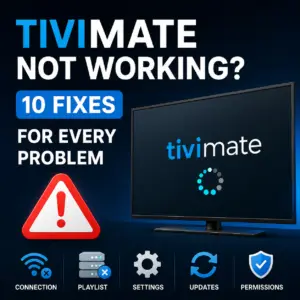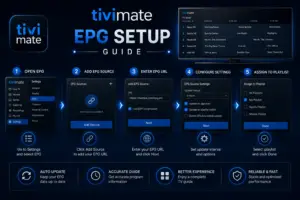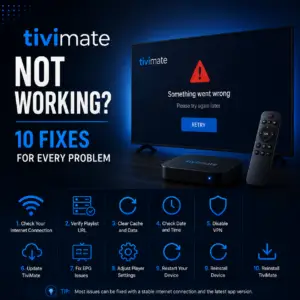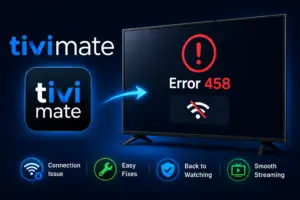
The tivimate error http data source exception is one of the most common issues users face when setting up TiviMate on Firestick or using the app. With nearly 2,000 monthly searches, this error frustrates many IPTV users who just want to watch their channels. With nearly 2,000 monthly searches, this error frustrates many IPTV users who just want to watch their channels. This guide explains exactly what causes this error and provides step-by-step solutions to get you back up and running.
What Does TiviMate Error HTTP Data Source Exception Mean?
The “HTTP Data Source Exception” error occurs when TiviMate tries to fetch your IPTV playlist or EPG data from a URL but cannot complete the request. In simple terms, the app sends a request to your IPTV provider’s server, but the server either does not respond or returns an error.
This error is not a problem with TiviMate itself — it is a connection issue between the app and your IPTV provider’s servers. Understanding this distinction is important because it means the fix usually involves checking your playlist URL, your internet connection, or your provider’s server status.
Common Causes of the HTTP Data Source Exception
- Incorrect or expired playlist URL — Your M3U link may have changed, expired, or been entered incorrectly
- IPTV provider server downtime — The server hosting your playlist is temporarily offline
- Internet connectivity issues — Your device cannot reach the internet or has limited connectivity
- DNS resolution failure — Your device cannot translate the playlist domain name to an IP address
- Firewall or VPN interference — A firewall, VPN, or ad blocker is blocking the connection
- Outdated TiviMate version — Older versions may have compatibility issues with certain playlist formats
- SSL/TLS certificate issues — The server’s SSL certificate may be invalid or expired
How to Fix TiviMate Error HTTP Data Source Exception
Fix 1: Verify Your Playlist URL
The most common cause of this error is an incorrect playlist URL. Open TiviMate and go to Settings > Playlists. Select your playlist and review the URL carefully. Check for:
- Typing errors in the URL (extra spaces, missing characters)
- Expired URLs that need to be renewed by your IPTV provider
- URLs that include www. when they should not, or vice versa
If you are unsure about the correct URL, contact your IPTV provider and ask them to confirm the exact playlist URL.
Fix 2: Test the URL in a Web Browser
A quick way to diagnose this issue is to test your playlist URL in a web browser. Copy the exact M3U URL from TiviMate and paste it into a browser address bar on a computer or phone connected to the same network. If the URL downloads a file or shows channel data, the URL is working. If you see an error or blank page, the URL is invalid or your IPTV provider’s server is down.
Fix 3: Restart Your Device
Sometimes a simple restart resolves temporary network issues. Fully power off your Android TV, Firestick, or streaming device, wait 30 seconds, and turn it back on. Launch TiviMate and check if the error persists.
Fix 4: Check Your Internet Connection
Test your internet connection by opening another streaming app like YouTube. If other apps also fail to load content, the issue is with your network. Try:
- Restarting your router and modem
- Connecting via Ethernet instead of Wi-Fi for a more stable connection
- Running a speed test to ensure you have adequate bandwidth
Fix 5: Clear TiviMate Cache
Corrupted cached data can cause connection errors. Go to your device’s Settings > Apps > TiviMate > Storage > Clear Cache. Do not clear data, as this will remove your playlists and settings. After clearing the cache, restart TiviMate and try again.
Fix 6: Disable VPN or Proxy
VPNs and proxy services can interfere with TiviMate’s ability to connect to IPTV servers. Temporarily disable your VPN and test if the error goes away. If it does, you may need to switch to a different VPN server location or whitelist your IPTV provider’s domain.
Fix 7: Update TiviMate to the Latest Version
Using an outdated version of TiviMate can cause compatibility issues. Check the Google Play Store or download the official TiviMate APK from Google Play. Install the update and test your playlist again. For additional help, visit the TiviMate community on Reddit.
Fix 8: Change Your DNS Settings
Sometimes your ISP’s DNS servers may fail to resolve the IPTV provider’s domain. Switch to a public DNS provider like Google DNS (8.8.8.8 and 8.8.4.4) or Cloudflare DNS (1.1.1.1). On Firestick, go to Settings > Network > Your Network > Advanced > IP Settings > Static and enter the DNS addresses manually.
Fix 9: Reinstall TiviMate
If none of the above solutions work, uninstall TiviMate completely and reinstall it. Make sure you save your playlist URLs before uninstalling. After reinstalling, add your playlists again and test.
Fix 10: Contact Your IPTV Provider
If you have tried all the fixes above and still see the error, the problem is likely on your IPTV provider’s end. Their server may be down, your subscription may have expired, or they may have changed their server URL. Contact their support team and ask them to verify that your account and playlist URL are active.
TiviMate Error HTTP Data Source Exception vs Other TiviMate Errors
| Error | Meaning | Typical Fix |
|---|---|---|
| HTTP Data Source Exception | Cannot connect to playlist server | Check URL, network, or provider |
| Error 458 | Playlist format not supported | Re-encode or reformat playlist |
| No data received | Server returned empty response | Check provider status |
| Connection timeout | Server took too long to respond | Improve network speed |
Preventing the TiviMate Error HTTP Data Source Exception in the Future
- Save a backup of your playlist URL in a notes app or email so you can quickly re-enter it if needed
- Use a reliable IPTV provider with good server uptime and responsive support
- Keep TiviMate updated to the latest version for bug fixes and compatibility improvements
- Maintain a stable internet connection with at least 25 Mbps for smooth IPTV streaming
- Bookmark your provider’s status page if they have one, so you can check for outages quickly
FAQ About TiviMate Error HTTP Data Source Exception
It is an error that appears when TiviMate cannot load your IPTV playlist from the server URL you provided.
Start by clearing the TiviMate cache in Firestick Settings > Apps > TiviMate > Clear Cache. Then restart the Firestick and check if the error is gone. If not, verify your playlist URL and internet connection.
Your internet may be working for general browsing, but your IPTV provider’s server could be down, or your playlist URL may have expired. Test the URL in a browser to confirm.
Yes, VPNs can interfere with the connection to your IPTV provider’s server. Try disabling your VPN temporarily to see if that resolves the issue.
It can, but it should be a last resort. Try simpler fixes like clearing cache, checking your URL, and restarting your device first.
Copy the URL from TiviMate and paste it into a web browser. If the browser downloads a file or displays channel data, the URL is working correctly.
Sources & References
- TiviMate on Google Play — Official Android TV app listing
- tvimate.co Setup Guides — Comprehensive installation and troubleshooting guides
- Best IPTV for TiviMate — Top-rated IPTV providers reviewed for TiviMate users
- TiviMate Not Working? Fixes — 10 proven fixes for channels, audio, and crashing
- Fix TiviMate Error 458 — Too many connections fix and step-by-step troubleshooting
- TiviMate User Agent Guide — Best user agent settings to stop buffering
- TiviMate Xtream Codes Setup — How to add IPTV via Xtream API (faster than M3U)
- TiviMate Keeps Crashing? — Fix app freezes and crashes on Firestick and Android TV
- TiviMate No Sound? — Fix audio not working on Firestick and Android TV
- TiviMate Channels Not Loading — Fix channels that won't play or show black screen
- TiviMate Parental Controls — Lock channels and restrict content with PIN
- TiviMate Backup and Restore — Save settings and playlists
- TiviMate Recording Not Working — Fix recording errors