
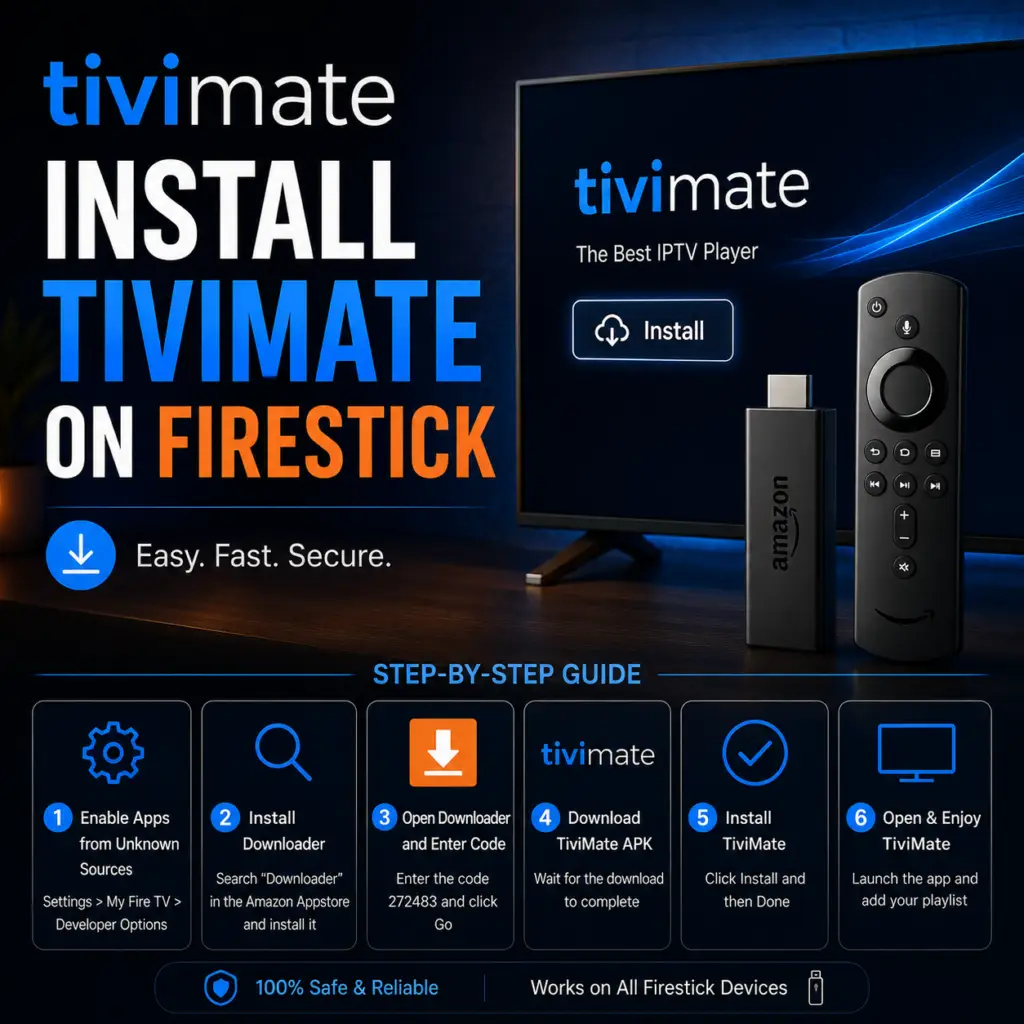
Quick Answer: To install TiviMate on Firestick in 2026, go to Settings → My Fire TV → Developer Options → Enable Apps from Unknown Sources. Then install Downloader from the Amazon App Store, open it, and enter code 272483 to download the latest TiviMate APK v5.3.2. Open the downloaded file, select Install, and launch TiviMate. Add your IPTV provider via Xtream Codes API or M3U URL to start watching.
Installing TiviMate on Firestick is the best way to turn your Amazon Fire TV Stick into a powerful IPTV streaming device. This guide walks you through every step, from enabling developer options to launching TiviMate for the first time. The entire process takes under 10 minutes.
What You Need Before Installing
Before you start, make sure you have the following ready:
- Amazon Fire TV Stick (any model: 4K, 4K Max, Lite, or standard HD) connected to your TV and Wi-Fi
- IPTV subscription with an M3U URL or Xtream Codes login (TiviMate is a player, not a content provider)
- At least 200 MB of free storage on your Firestick (check in Settings → My Fire TV → About → Storage)
- Downloader code 272483 — the official code to download the TiviMate APK
Firestick runs Fire OS, which is a modified version of Android. TiviMate is not available in the Amazon App Store, so you need to sideload it using the Downloader app. This is safe and does not require rooting your device.
Step 1: Enable Apps from Unknown Sources
To sideload TiviMate, you must first allow your Firestick to install apps from outside the Amazon App Store.
- From the Firestick home screen, go to Settings (the gear icon in the top menu bar)
- Scroll right and select My Fire TV (or Device & Software on newer models)
- Select Developer Options
- Select Install Unknown Apps (on older Fire OS versions, this is labeled Apps from Unknown Sources)
- Find Downloader in the list and toggle it to ON
If you do not see Developer Options, you need to enable it first: go to Settings → My Fire TV → About → Fire TV Stick and click the center button 7 times until you see the message “You are now a developer.”
Step 2: Install the Downloader App
Downloader is a free app from the Amazon App Store that lets you download files from the internet directly to your Firestick.
- On the Firestick home screen, use the search function (magnifying glass icon in the top left)
- Type Downloader and select it from the search results
- Select the Downloader app by AFTVnews and click Get (or Download) to install it
- Wait for the installation to complete, then click Open
- When Downloader opens, click Allow to grant it access to your Firestick storage
Step 3: Download TiviMate APK via Downloader Code
With Downloader installed and permissions granted, you can now download the TiviMate APK.
- In the Downloader app, you will see a URL input field. Click on it to open the keyboard
- Type the Downloader code 272483 and click Go
- Downloader will connect to the official TiviMate server and begin downloading the APK file (~25 MB)
- Wait for the download to finish. This takes about 30–60 seconds on a typical broadband connection
Note: If code 272483 stops working, you can use the direct URL entry in Downloader to install the latest version.
Step 4: Install TiviMate on Firestick
Once the APK file has downloaded, the installation screen appears automatically.
- Click Install on the download completion screen
- The installation takes about 10–15 seconds. When complete, you see two options: Open and Done
- Click Open to launch TiviMate immediately, or Done to launch it later from Your Apps & Channels
TiviMate is now installed on your Firestick. The app appears in your app library under Your Apps & Channels alongside your other installed apps.
Step 5: Launch and Configure TiviMate
When you open TiviMate for the first time, you are greeted with a welcome screen that guides you through the initial setup.
- On the welcome screen, click Add Playlist
- Choose your playlist type: M3U URL, Xtream Codes API, or Stalker Portal. Most IPTV providers offer M3U URLs
- Enter the playlist details provided by your IPTV service. For M3U, paste the full URL. For Xtream Codes, enter the server URL, username, and password
- Click Next and let TiviMate load your channel list
After the playlist loads, you are prompted to add an EPG source for TV guide data. You can enter your EPG URL here or skip this step and set it up later in Settings → EPG.
Once configured, you can start browsing and watching channels immediately. Use the left and right buttons on your remote to switch between the channel list, EPG grid, and settings.
Alternative Installation Methods
If the Downloader method does not work for you, there are two alternative ways to install TiviMate on your Firestick.
Using ADB Debugging
If you have a Windows, Mac, or Linux computer on the same network as your Firestick, you can install TiviMate via ADB (Android Debug Bridge):
- On your Firestick, go to Settings → My Fire TV → Developer Options and enable ADB Debugging
- On your computer, download the TiviMate APK from the official website
- Open a terminal and run:
adb connect [Firestick IP address] - Run:
adb install TiviMate.apk
Using Send Files to TV
- Install the TiviMate APK on your Android phone
- Install the Send Files to TV app on both your phone and Firestick
- Open the app on both devices, select your Firestick from the phone app, and send the APK file
- Once transferred, open the file on your Firestick and click Install
Troubleshooting Firestick Installation
| Problem | Solution |
|---|---|
| “App not installed” error | You already have TiviMate installed. Delete the old version first in Settings → Applications → Manage Installed Applications |
| “Parse Error” | The APK download was corrupted. Delete it and download again using code 272483 |
| Downloader code 272483 not working | Update Downloader from the Amazon App Store, or use the direct URL: /apk |
| Install button is greyed out | You did not enable Install Unknown Apps for Downloader in Step 1. Go back and check Developer Options |
| TiviMate crashes on launch | Clear the app cache: Settings → Applications → Manage Installed Applications → TiviMate → Clear Cache. If still crashing, reinstall the APK |
| Firestick storage full | Uninstall apps you no longer use, or move apps to an SD card if your Firestick model supports it |
| Download is very slow | Check your Wi-Fi connection. Run a speed test from the Firestick browser |
Frequently Asked Questions
Yes. TiviMate is safe, legitimate software. The APK is hosted on the official TiviMate website and has been downloaded millions of times. You are sideloading from a trusted source, not from random websites.
The code is 272483. Enter it into the Downloader app to download the latest TiviMate APK.
Yes. TiviMate is a media player — it does not provide any channels, streams, or content. You must have an IPTV subscription that provides an M3U URL or Xtream Codes login.
Yes. You can use apps like Send Files to TV to transfer the APK from your phone, or use ADB Debugging from a computer. However, Downloader is the easiest method by far.
The app is free to install and use. Premium features cost $4.99 per year (or $14.99 for a lifetime license covering all future versions). You can use the free version indefinitely without paying.
Yes. TiviMate Premium covers up to 5 devices with a single subscription. Install the APK on each Firestick and log in with the same Companion app account on each one.
This is usually caused by low storage. Go to Settings → My Fire TV → About → Storage and clear the cache on your apps. If the problem persists, uninstall unused apps to free up space.
Yes. The Fire TV Cube is actually the best Fire TV device for TiviMate. It has the fastest processor and the most RAM, making channel switching and multi-screen exceptionally smooth.
You now have TiviMate installed and configured on your Firestick. Next steps: get your EPG TV guide working so you can see program information, check out the best TiviMate settings for Firestick, and install the Companion app on your phone for easier remote control.
Sources & References
- TiviMate on Google Play — Official Android TV app listing
- tvimate.co Setup Guides — Comprehensive installation and troubleshooting guides
- Best IPTV for TiviMate — Top-rated IPTV providers reviewed for TiviMate users
- TiviMate Not Working? Fixes — 10 proven fixes for channels, audio, and crashing
- Fix TiviMate Error 458 — Too many connections fix and step-by-step troubleshooting
- TiviMate User Agent Guide — Best user agent settings to stop buffering
- TiviMate Xtream Codes Setup — How to add IPTV via Xtream API (faster than M3U)
- TiviMate Keeps Crashing? — Fix app freezes and crashes on Firestick and Android TV
- TiviMate No Sound? — Fix audio not working on Firestick and Android TV
- TiviMate Channels Not Loading — Fix channels that won't play or show black screen
- TiviMate Parental Controls — Lock channels and restrict content with PIN
- TiviMate Backup and Restore — Save settings and playlists
- TiviMate Recording Not Working — Fix recording errors
