
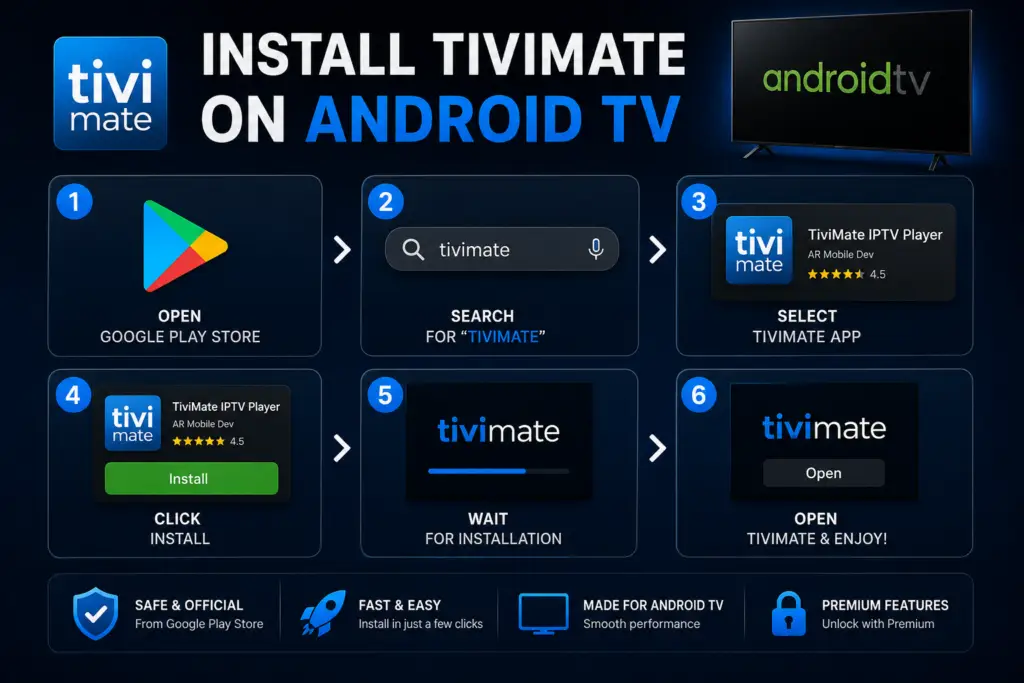
Quick Answer: To install TiviMate on Android TV, open the Google Play Store on your device, search for “TiviMate,” and install. If your device does not have the Play Store (e.g., Sony Bravia or certain TCL models), sideload the APK using a USB drive or the Downloader app. TiviMate works on Android TV 5.0+ and runs on Sony, TCL, Nvidia Shield, Xiaomi Mi Box, and Google Chromecast with Google TV.
Overview
Installing TiviMate on Android TV is straightforward, but the exact method depends on whether your device has access to the Google Play Store. This guide covers both the standard Play Store method and the sideload method for devices that do not list TiviMate in their app catalog.
We also cover compatible devices, first-time setup, and troubleshooting so you can get up and running in under ten minutes.
Method 1: Install TiviMate on Android TV via Google Play Store
This is the easiest method. If your device has the Google Play Store and TiviMate is listed there, the installation takes less than a minute.
- From your Android TV home screen, open the Google Play Store app. It is usually in the apps row near the top.
- Use the search function (magnifying glass icon) and type TiviMate. The official app by AR Mobile Mobile appears.
- Select the app and click Install. The download is roughly 35 MB and completes in a few seconds on a typical broadband connection.
- Once installed, click Open to launch TiviMate. The app takes you directly to the playlist setup screen.
If TiviMate does not appear in the Play Store search results, your device may be incompatible or the app may not be published for your specific device model. In that case, use the sideload method below.
Method 2: Sideload TiviMate APK (No Play Store)
Sideloading allows you to install TiviMate on any Android TV device even when the app is not available in the Play Store. You need a file transfer method such as Downloader by AFTVnews, a USB drive, or ADB.
Using the Downloader App (Recommended)
- On your Android TV, go to Settings > Device Preferences > Security & Restrictions and enable Install Unknown Apps or Apps from Unknown Sources.
- Install the Downloader app from the Google Play Store. It is a free file downloader and browser designed for Android TV.
- Open Downloader and type the URL where your TiviMate APK is hosted. The official website URL or a trusted source works.
- Once the APK finishes downloading, click Install and then Open to launch TiviMate.
Using a USB Drive
- Download the TiviMate APK on your computer from a trusted source.
- Copy the APK file to a USB flash drive formatted as FAT32.
- Plug the USB drive into your Android TV device.
- Open a file manager app on your Android TV (such as X-plore File Manager) and navigate to the USB drive.
- Select the APK file and click Install.
Which Devices Are Compatible with TiviMate?
Devices running Android TV 5.0 or higher are compatible. Google TV devices are also compatible since Google TV is a skin on top of Android TV.
First-Time Setup After Installing TiviMate
Once TiviMate is installed, follow these steps to configure it for the first time.
- Launch TiviMate and click Add Playlist on the welcome screen.
- Choose your playlist format: M3U URL, Xtream Codes API, or Stalker Portal. If you are unsure which to use, check our guide on how to add an M3U playlist to TiviMate.
- Enter your playlist details and let TiviMate load the channel list.
- After the playlist loads, you are prompted to add an EPG source. Paste your EPG URL or skip this step and add it later from the settings menu.
- Set your preferred video player. TiviMate uses its built-in ExoPlayer by default, which works well for most users. You can change this in Settings > General > Video Player.
- Enable the TiviMate Companion app remote control if you plan to use your phone as a remote. Go to Settings > Remote Control and toggle it on.
Troubleshooting Installation Issues
Android TV vs Google TV: What Is the Difference?
Android TV and Google TV are the same underlying operating system. Google TV is a redesigned interface layer on top of Android TV that adds personalized content recommendations, a dedicated Watchlist feature, and a more modern home screen layout.
Devices like the Chromecast with Google TV run Google TV, while the Nvidia Shield runs the classic Android TV interface. Both run the same apps including TiviMate. The installation process is identical for both platforms.
Best Android TV Devices for TiviMate in 2026
Not all Android TV devices are created equal. Here is how the most popular options rank for running TiviMate in 2026:
- Nvidia Shield TV Pro — The fastest Android TV device available. Handles 4K IPTV streams, large EPG data, and multi-window mode without any slowdown. Supports upscaling for lower resolution content.
- Chromecast with Google TV (HD or 4K) — Excellent performance at a low price. The Google TV interface is clean and the device handles TiviMate well for most users.
- Onn 4K Streaming Box — Walmart’s branded device offers strong performance for the price. Runs TiviMate smoothly at 4K resolution.
- Xiaomi Mi Box S — A solid mid-range option with Android TV 10. Works well with TiviMate but has slightly less RAM than the Shield.
- Sony Bravia TVs with Android TV — Built-in Android TV on Sony televisions runs TiviMate well for most channels. Large EPG datasets may be slightly slower than on dedicated streaming hardware.
FAQs About Installing TiviMate on Android TV
Yes, TiviMate is available on the Play Store for most Android TV and Google TV devices. If your device does not show it, sideloading is the alternative.
Yes. The Nvidia Shield TV and Shield TV Pro are among the best devices for TiviMate and offer the smoothest experience available.
Firestick runs Fire OS, not Android TV. You can sideload TiviMate using the Downloader app. Enable Apps from Unknown Sources in the Firestick settings first.
You need a Google account to download from the Play Store. For sideloading, no Google account is required.
Only if your smart TV runs Android TV or Google TV. Samsung, LG, and Roku TVs use different operating systems and cannot run TiviMate directly.
No. Installing TiviMate only adds the app to your device. It does not affect any other installed applications or their data.
If you installed from the Play Store, updates happen automatically. If you sideloaded, you need to download and install the new APK manually when a new version is released.
TiviMate on Google Play. For more information, visit the Android TV on Wikipedia.
Sources & References
- TiviMate on Google Play — Official Android TV app listing
- tvimate.co Setup Guides — Comprehensive installation and troubleshooting guides
- Best IPTV for TiviMate — Top-rated IPTV providers reviewed for TiviMate users
- TiviMate Not Working? Fixes — 10 proven fixes for channels, audio, and crashing
- Fix TiviMate Error 458 — Too many connections fix and step-by-step troubleshooting
- TiviMate User Agent Guide — Best user agent settings to stop buffering
- TiviMate Xtream Codes Setup — How to add IPTV via Xtream API (faster than M3U)
- TiviMate Keeps Crashing? — Fix app freezes and crashes on Firestick and Android TV
- TiviMate No Sound? — Fix audio not working on Firestick and Android TV
- TiviMate Channels Not Loading — Fix channels that won't play or show black screen
- TiviMate Parental Controls — Lock channels and restrict content with PIN
- TiviMate Backup and Restore — Save settings and playlists
- TiviMate Recording Not Working — Fix recording errors
