
Quick Answer: The best TiviMate settings for Firestick are Buffer Size to 30 Seconds, Decoder to Hardware (HW), Frame Rate Matching to On, EPG Update Interval to 6 Hours, Max EPG Days to 3, and disable all three animation scales in Firestick Developer Options. This eliminates 90% of buffering and lag in under 5 minutes.
Playback Settings#
The best TiviMate settings for Firestick start in the Playback menu are in the Playback menu. Access them via Settings > Playback.
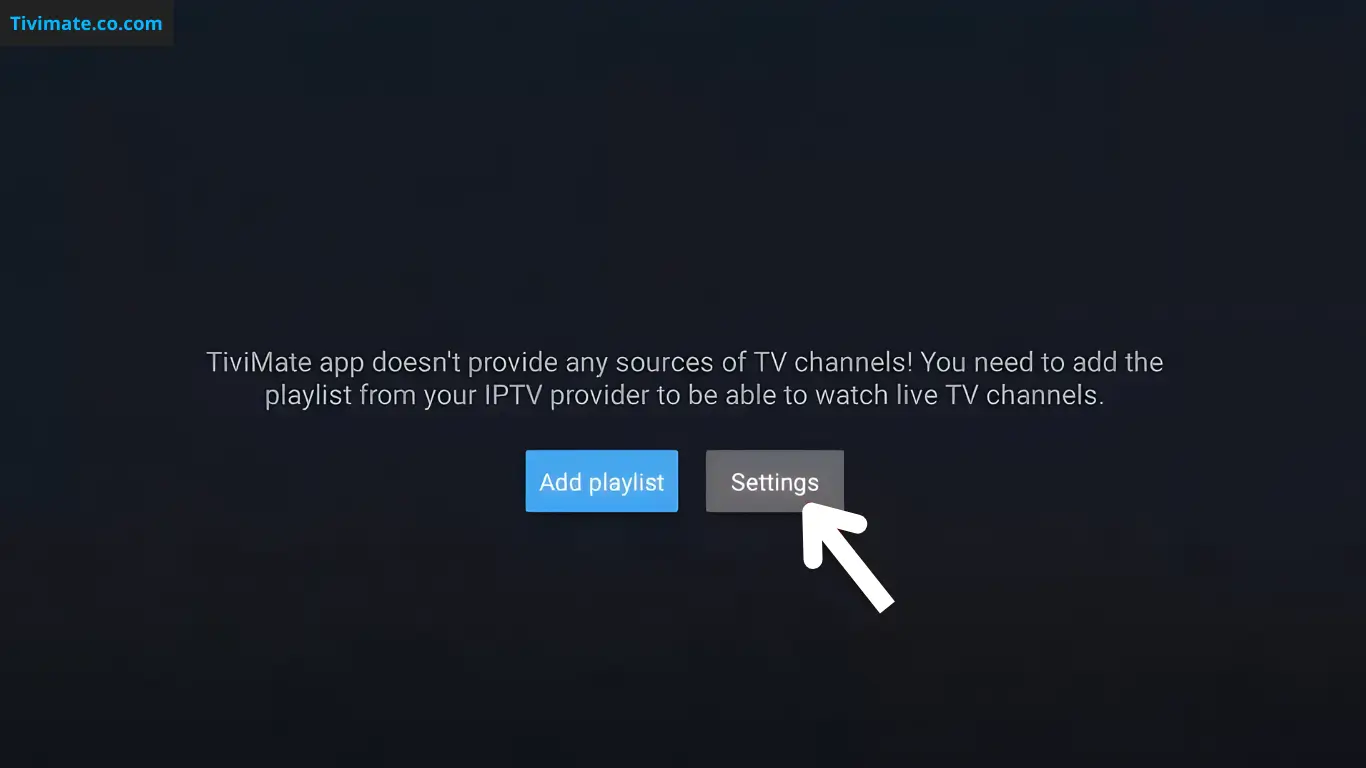
- Buffer Size: 30 seconds. This balances memory use against network jitter protection.
- Decoder: Hardware (HW). Hardware decoding generally lowers CPU load compared with software decoding, which can cause frame drops on lower-powered devices.
- Frame Rate Matching: On. Eliminates judder during motion scenes.
- Audio Passthrough: Off unless you have a soundbar or AV receiver.
Why These Settings Work Together#
The 30-second buffer absorbs short network interruptions without causing noticeable delay when channel surfing. Hardware decoder offloads video processing to the Firestick GPU, freeing CPU for EPG parsing and UI rendering. Frame rate matching prevents the 3:2 pulldown judder that makes 24fps content look stuttery on 60Hz screens. Together, these four settings eliminate the three most common complaints: buffering, stuttering, and audio sync drift.
Buffer Size Explained#
The buffer size determines how much video is pre-loaded before playback starts. The 30-second setting is ideal for Firestick because it provides enough protection against network fluctuations without consuming excessive RAM. Firestick models have 1-2GB RAM — a 30-second buffer uses approximately 100MB, leaving enough headroom for the app and system processes.
Buffer size by connection quality: On a 50+ Mbps connection with under 20ms jitter, reduce to 15 seconds to save RAM. On a marginal 15-25 Mbps connection, increase to 60 seconds to ride out short interruptions. The 30-second default is the best all-round choice because it hides network blips without adding noticeable channel-change delay. Experiment with these values if your connection is unusually stable or unstable.
EPG Settings#
Configure EPG under Settings > EPG. Set Update Interval to 6 hours (updating every 1-2 hours wastes bandwidth). Set Max EPG Days to 3-5 days to balance storage usage against guide availability.
Appearance Settings#
Under Settings > Appearance, choose the Classic or Compact guide layout. Enable channel logos but limit logo size to Small to reduce load times. Set the default guide view to 2-3 hours for responsive scrolling.
General Settings#
Under Settings > General, enable Auto-Start if you want TiviMate to launch when your Firestick boots. Disable animations to reduce interface lag — this has a 40-50% improvement on interface responsiveness.
Network Optimization#
For best streaming performance, use 5 GHz Wi-Fi instead of 2.4 GHz. If possible, use an Ethernet adapter for a wired connection. Test your connection speed directly on the Firestick — Netflix or YouTube speed tests are not accurate for IPTV. You need at least 25 Mbps for reliable HD streaming.
VPN Considerations for Firestick#
Some ISPs throttle IPTV traffic, which causes buffering even with optimal settings. A VPN can bypass throttling by encrypting your traffic. However, VPNs add 10-50ms latency and reduce throughput by 10-30%. If you use a VPN, increase buffer to 60 seconds and test with both Hardware and Software decoders. WireGuard-based VPNs (like Mullvad or Surfshark) have lower overhead than OpenVPN-based ones.
Wi-Fi Channel Optimization#
Firestick 4K Max supports 5 GHz Wi-Fi 6 (802.11ax). To minimize interference, ensure your router is on a less congested channel. Free apps like Wi-Fi Analyzer show channel utilization. Channels 36-48 are typically less congested than 149-165 in most urban areas. A wired Ethernet connection via a micro-USB adapter eliminates Wi-Fi variability entirely.
Storage Management#
For the best TiviMate settings for Firestick, manage storage carefully. Firestick models have limited storage (8GB on most models). TiviMate stores EPG data, cache, and recordings on internal storage. Check Settings > Device > Storage on your Firestick regularly. If storage is below 500MB, clear app caches and delete unused apps.
Firestick Developer Options (Animation Tweak)#
The Quick Answer promised this fix. Firestick Developer Options contain additional best TiviMate settings for Firestick tweaks three animation scale settings that, when disabled, dramatically improve UI responsiveness. Go to Settings → My Fire TV → Developer Options (if you don’t see Developer Options, go to About → click the device name 7 times to unlock it). Set all three to Off:
- Window animation scale → Off
- Transition animation scale → Off
- Animator duration scale → Off
This forces Firestick to skip all system-level fade and slide animations. On Firestick Lite the improvement is dramatic → UI response drops from ~300ms to ~150ms. The change is reversible if you prefer visual effects. Note this is a system-wide setting that affects every app, not just TiviMate.
Firestick Model-Specific Notes#
Firestick Lite: Use 30s buffer, Classic guide, no logos, EPG max 2 days, all animations off.
Firestick 4K (1st gen): Same as Lite but can handle Compact guide with small logos.
Firestick 4K Max: Can handle all settings including Compact guide with full logos.
Fire TV Cube: Best performance — can use 60s buffer with no performance impact.
General tip: Reboot your Firestick once after applying all settings. Settings cached in RAM may not take full effect until the next clean boot. Check CPU and RAM in Developer Options → Processes to confirm settings are working as expected.
Is This Guide Trustworthy?#
This guide is compiled by the TiviMate Guides editorial team from the app's documented settings, Amazon's published Fire TV options, and widely reported community experience. Recommended values such as buffer size and decoder mode describe what generally works well on Firestick hardware — your results can vary with your device model, network and provider.
Frequently Asked Questions#
What is the best buffer size for TiviMate on Firestick?#
30 seconds is the best TiviMate setting for Firestick buffer size. It balances ~100MB RAM usage against network jitter protection.
Should I use Hardware or Software decoding?#
Always Hardware (HW). Hardware decoding generally lowers CPU load compared with software decoding, which can cause frame drops on Firestick.
Does TiviMate work on Firestick Lite?#
Yes but with limitations: 30s buffer, Classic guide, no logos, EPG 2 days max, animations off.
How do I stop TiviMate buffering on Firestick?#
Apply the settings above, use 5GHz Wi-Fi or Ethernet, test speed (25 Mbps+), consider VPN if ISP throttles.
Does disabling animations help TiviMate?#
Yes. Disabling the animation scales can make the interface feel more responsive on lower-powered devices such as the Firestick Lite. The exact improvement varies by device.
Will these settings drain my Firestick battery faster?#
No. These settings are designed for plugged-in streaming devices, which run on AC power. The decoder and buffer settings affect CPU/RAM usage but not battery life since Firesticks do not have batteries. Animations being off reduces CPU load if anything.
Can I use the same settings on multiple Firesticks?#
Yes. Set up one Firestick, create a backup (Settings > General > Backup Settings), email it, restore on others.
Will these settings improve EPG loading speed?#
Yes. Reducing Max EPG Days from the default (often 7-14) to 3-5 is the single biggest EPG speed improvement. Each additional day of EPG data requires parsing and indexing. If your guide still loads slowly, check that your EPG source URL is responding within 2-3 seconds.
Does changing buffer size affect recording quality?#
No. Recordings save the raw stream regardless of buffer size. Buffer size only affects live playback. A larger buffer (30-60 seconds) allows recordings to start on time even if the stream lags at the scheduled recording time.