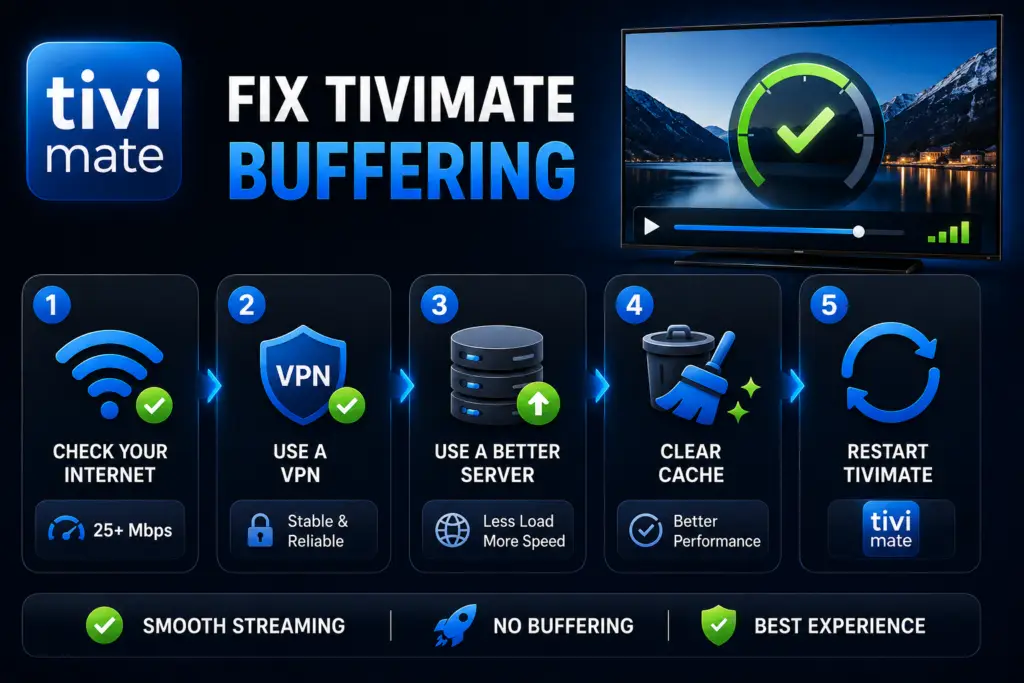
Quick Answer: To fix TiviMate buffering in 2026, start with these three fixes: increase Buffer Size to 30 seconds in Settings → Playback, switch Video Decoder from Hardware (HW) to Software (SW), and use a wired Ethernet connection instead of Wi-Fi. If buffering persists, the issue is likely your IPTV provider’s server, not TiviMate.
To fix TiviMate buffering, start with these 8 proven steps. TiviMate buffering is one of the most frustrating things in IPTV. Follow this fix TiviMate buffering guide step by step. You are watching a match, it freezes, the spinner appears, and by the time playback resumes you have missed the goal. I have been there.
Here is the thing most people do not realize: TiviMate itself is almost never the problem. The buffering comes from your internet connection, your IPTV provider’s servers, or a wrong setting in TiviMate. Fix the right thing and it stops.
Work through these 8 fixes in order. Most people are sorted by Fix 2.
Why TiviMate Buffers (Fix TiviMate Buffering Causes)
Three things cause almost all TiviMate buffering:
- Your internet — too slow, too congested, or Wi-Fi signal dropping at the TV
- Your IPTV provider’s servers — overloaded during peak hours, especially live sports
- Wrong TiviMate settings — buffer size too small, wrong decoder, or ISP throttling your traffic
The good news: all three are fixable. Let us go through every fix, starting with the one that works most often.
Fix 1 — Increase the Buffer Size
This is the first thing to try and it fixes buffering for a lot of people. TiviMate pre-loads video before playing it. If the buffer is too small, any tiny network hiccup causes a freeze.
- Open TiviMate → Settings → Playback → Buffer Size
- Increase it to 60 seconds
- Restart the channel
Fast connection (50+ Mbps)? 30 seconds is fine. Slower or inconsistent connection? Go to 60 or even 90 seconds. The trade-off is a few extra seconds of startup time, but once it starts, playback runs smooth.
Important: On older Firesticks with limited RAM (1 GB or less), do not go above 60 seconds or the device itself starts struggling and causes audio desync or UI lag.
Fix 2 — Switch the Video Decoder
This one surprises people. TiviMate can use either a hardware (HW) or software (SW) decoder to process video. The wrong one for your device causes stuttering, buffering, and black screens.
- Go to Settings → Playback → Video Decoder
- If it says Hardware, switch to Software. If it says Software, switch to Hardware.
- Test the channel that was buffering
Most basic Firesticks (Fire TV Stick Lite, 3rd gen) perform better with Software. Nvidia Shield and higher-end Android TV boxes usually prefer Hardware. There is no universal answer — just try both and see which one your device likes.
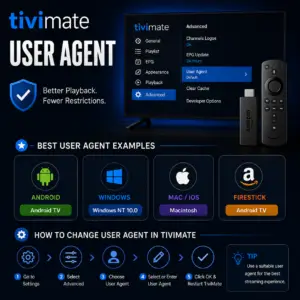
Fix 3 — Change Your User Agent
This is the most underrated fix on this list. Some ISPs throttle IPTV traffic by detecting the user agent string TiviMate sends. Change it to look like a regular browser and the throttling stops immediately.
- Go to Settings → Playlists → [Your Playlist] → User Agent
- Try:
Mozilla/5.0 (Linux; Android 9; AndroidTV) AppleWebKit/537.36 - Or try:
Lavf/58.29.100 - Restart the channel
If you are not sure which to use, ask your IPTV provider. Some providers require a specific user agent for optimal performance on their servers.
Fix 4 — Try an External Player
TiviMate has a built-in player, but you can route streams through MX Player or VLC instead. Some stream formats play better in external players, especially HEVC / H.265 streams that older devices struggle to decode in real time.
- Install MX Player from the Amazon App Store or Google Play Store
- In TiviMate: Settings → Playback → External Player → MX Player
- Test the channel that was buffering
MX Player works better on Firestick because it has better hardware acceleration support. VLC is worth trying if you have unusual stream formats like TS or M3U8 with AAC audio.
Fix 5 — Check Your Actual Internet Speed
Run a speed test on your streaming device — not your phone. The speed at your TV is often much lower than what your router reports, especially over Wi-Fi. Use the Downloader app or Analiti speed test directly on your Firestick or Android TV.
If your speed is fine but specific channels still buffer, the problem is your IPTV provider’s server — not your internet. Try the same channel at a different time of day to confirm. If it works at 2 AM but buffers at 8 PM, server congestion is your issue, not speed.
Fix 6 — VPN: Turn It On or Off
VPNs can both cause and fix buffering depending on your situation:
- No VPN and buffering: Your ISP is probably throttling IPTV traffic. Try a VPN with a server close to your location. WireGuard protocol is faster than OpenVPN for streaming.
- Using a VPN and buffering: The VPN server is the bottleneck. Disable it, switch to a closer server, or change to WireGuard protocol. Some cheap VPNs cannot handle the throughput needed for 4K streaming.
Fix 7 — Clear Cache and Restart
Sometimes TiviMate just needs a clean slate. A corrupted cache can cause persistent buffering that nothing else fixes.
- Firestick: Settings → Applications → Manage Installed Applications → TiviMate → Clear Cache
- Android TV / Google TV: Settings → Apps → TiviMate → Clear Cache
- Unplug your device from power for 30 seconds (this clears the DNS cache too)
- Reopen TiviMate and test the problem channel
Fix 8 — It Is Your IPTV Provider
If you have tried everything above and specific channels still buffer — especially during evenings and weekends — the problem is your provider’s servers. They are overloaded and cannot handle the number of concurrent connections during peak hours.
Contact their support and ask about server load, backup server URLs, or whether your subscription plan has a connection limit you are exceeding. If they cannot help, it might be time to test a different provider. Fav IPTV offers reliable servers with minimal buffering during peak hours and a free trial so you can test before committing.
Buffering by Device — What to Expect
Frequently Asked Questions
This is almost always a buffer size issue. Increase to 60 seconds in Settings → Playback → Buffer Size. If that does not fix it, switch the video decoder from Hardware to Software or vice versa.
30 seconds for fast stable connections (50+ Mbps), 60 seconds for average connections, 90 seconds if your connection is slow or inconsistent. Higher buffer means smoother playback but slightly longer channel startup time.
No. Buffering is about your internet connection and your IPTV provider, not your TiviMate subscription plan. Both free and Premium users experience identical stream quality. Premium unlocks features like multi-screen and recording, but does not improve playback stability.
Fast internet does not guarantee smooth IPTV. The bottleneck is usually the provider’s server, not your connection. Try the same channel at 2 AM — if it works fine then but buffers at 8 PM, it is a server capacity issue. Also check your video decoder setting and user agent.
Live sports use high-bitrate streams that require more bandwidth and server capacity. During major matches, IPTV provider servers become overloaded because thousands of users watch the same channel simultaneously. Try reducing stream quality, switching decoder, or using an external player like MX Player.
Yes, if your device is on Wi-Fi. Ethernet provides a stable, interference-free connection with consistent latency. Many Firestick users see an immediate improvement after switching from Wi-Fi to Ethernet (via a USB adapter). Even a powerline adapter is better than Wi-Fi for IPTV.
This is usually a server-side issue. Either the channel is offline, the provider’s server is down, or your playlist URL has expired. Check with your IPTV provider first. If other channels work, the single channel is down. If nothing works, your playlist may need to be refreshed.
Ookla Speedtest. MX Player on Google Play.
Still buffering after all 8 fixes? The issue is almost certainly your IPTV provider. Read our guide to choosing a reliable IPTV service for what to look for. If you are seeing error codes, see our TiviMate error 458 guide for the most common one. For a complete walkthrough of all TiviMate settings, check our TiviMate settings guide.
Fix TiviMate buffering with these 8 steps. Fix TiviMate buffering by adjusting buffer size.
Sources & References
- TiviMate on Google Play — Official Android TV app listing
- tvimate.co Setup Guides — Comprehensive installation and troubleshooting guides
- Best IPTV for TiviMate — Top-rated IPTV providers reviewed for TiviMate users
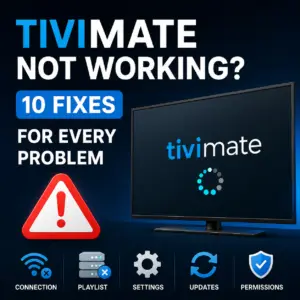
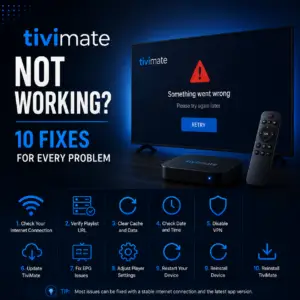
- TiviMate Not Working? Fixes — 10 proven fixes for channels, audio, and crashing
- Fix TiviMate Error 458 — Too many connections fix and step-by-step troubleshooting
- TiviMate User Agent Guide — Best user agent settings to stop buffering
- TiviMate Xtream Codes Setup — How to add IPTV via Xtream API (faster than M3U)
- TiviMate Keeps Crashing? — Fix app freezes and crashes on Firestick and Android TV
- TiviMate No Sound? — Fix audio not working on Firestick and Android TV
- TiviMate Channels Not Loading — Fix channels that won't play or show black screen
- TiviMate Parental Controls — Lock channels and restrict content with PIN
- TiviMate Backup and Restore — Save settings and playlists
- TiviMate Recording Not Working — Fix recording errors