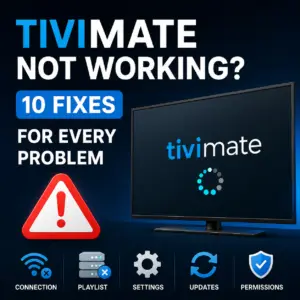
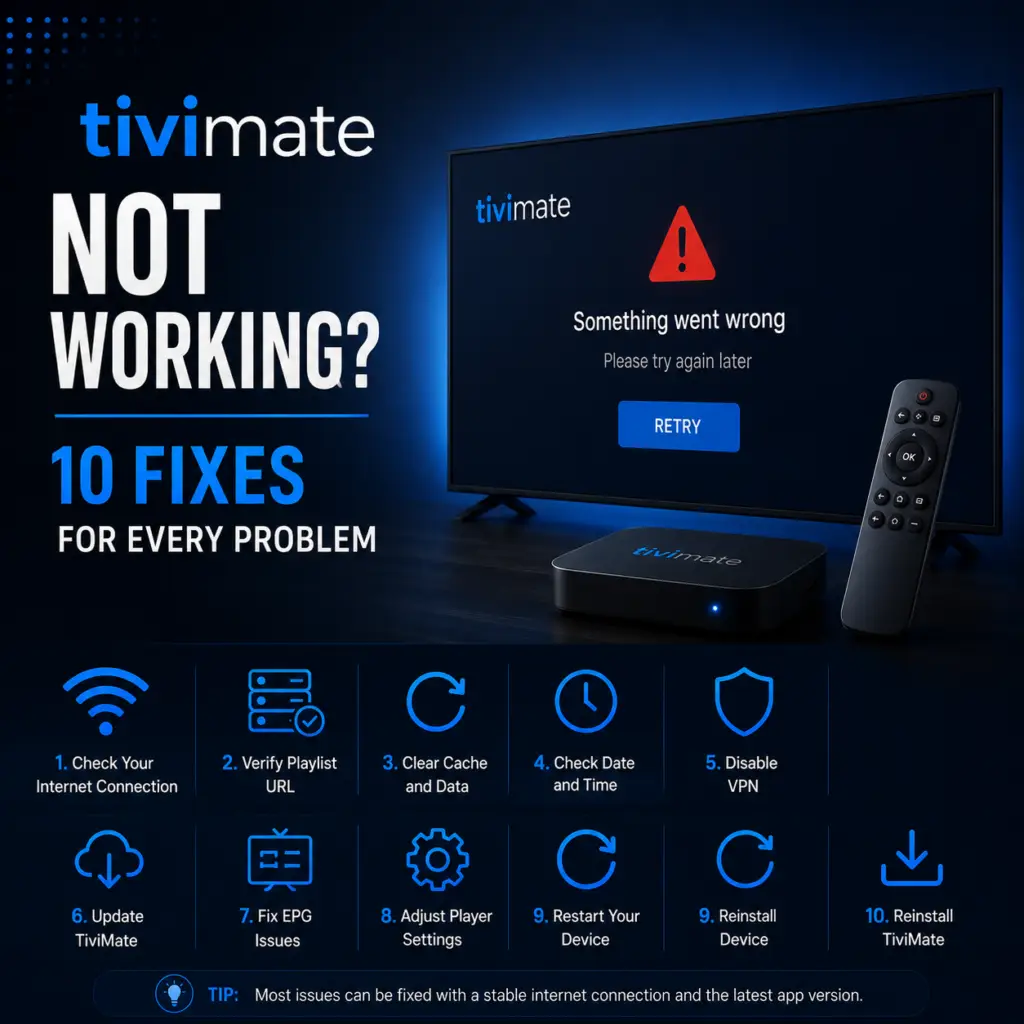
Quick Answer: If TiviMate is not working, start with these three steps: force close the app (Settings → Apps → TiviMate → Force Stop), clear the cache (Settings → Apps → TiviMate → Clear Cache), and restart your device. If the issue persists, check if your IPTV subscription is active and your internet connection is stable.
TiviMate not working is frustrating, but nearly every issue has a simple fix. Before you dig into specific troubleshooting, try these three things: restart TiviMate, clear its cache, and restart your streaming device. That alone resolves the majority of TiviMate not working problems across Firestick and Android TV.
If basic troubleshooting does not help, find your exact problem below. This guide covers channels not loading, black screen, buffering, crashing, no sound, EPG failures, playlist errors, and error codes — with device-specific fixes for Firestick, Android TV, and Nvidia Shield.
First Steps — Do This Before Anything Else
- Force close TiviMate completely and reopen it — this alone fixes many TiviMate not working issues
- Clear TiviMate cache: Settings → Apps → TiviMate → Clear Cache
- Restart your device — unplug from power for 30 seconds
- Check your internet connection — run a speed test on the streaming device (not your phone)
- Update TiviMate to the latest version — use Downloader code 272483 on Firestick or update via Google Play Store on Android TV
Channels Not Loading
Black Screen with Audio
Black screen with audio playing is almost always a decoder mismatch. The video stream format does not match your device current decoder setting. This is a very common TiviMate not working scenario on Firestick 4K devices.
- Go to Settings → Playback → Video Decoder
- If it says Hardware, switch to Software. If Software, switch to Hardware.
- Test the same channel again
If that does not work, try an external player: Settings → Playback → External Player → choose MX Player or VLC. Some stream formats only play correctly outside TiviMate built-in player. You can download MX Player from the Google Play Store or Amazon Appstore.
Buffering Issues
Buffering has many causes, but two fixes solve it for most people:
- Increase buffer size: Settings → Playback → Buffer Size → set to 60 seconds
- Switch video decoder: Settings → Playback → Video Decoder → toggle between Hardware and Software
For the full list of 8 fixes (including user agent, VPN, external player, and provider-side issues), see our complete TiviMate buffering guide.
If buffering persists, your internet connection may not meet the minimum requirements for IPTV streaming. Run a speed test directly on your streaming device — you need at least 10 Mbps download for SD channels and 25 Mbps for HD. Wi-Fi congestion is another common cause; try switching to a wired Ethernet connection if possible.
App Crashing or Freezing
- Clear app cache and data: Settings → Apps → TiviMate → Clear Cache, then Clear Data (note: clearing data removes your playlists — save your URLs first)
- Free up storage: TiviMate needs at least 50 MB free on your device. Delete apps you do not use
- Reinstall TiviMate: Use Downloader code 272483 to install a fresh copy
- Check for conflicts: VPN apps, ad blockers, or speed test apps running in the background can interfere with TiviMate
- Low RAM: Firestick devices with 1 GB RAM struggle when too many apps are open. Force close background apps from Settings → Applications → Manage Installed Applications
- Outdated firmware: If TiviMate not working after a Firestick system update, check for another update or factory reset the device as a last resort
EPG Not Working
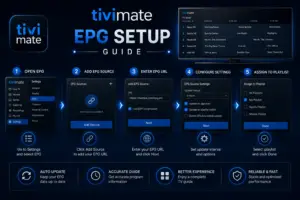
- If TiviMate is not showing guide data, start here. Confirm EPG URL is set: Settings → Playlists → [Playlist] → EPG Source
- Force a manual update: Settings → Playlists → [Playlist] → Update EPG
- Clear EPG cache and update again
- If some channels have guide data and others do not, there is a channel ID mismatch — contact your provider
Full step-by-step: EPG setup guide.
For the best EPG reliability, use a dedicated EPG service like m3u4u or EPG.Best, which allow you to customize guide data and fix channel ID mismatches manually.
No Sound
TiviMate not playing audio is usually a decoder or track selection issue. Try these fixes in order:
- While watching a channel, press the menu/OK button on your remote and check Audio Track options — sometimes the default audio track is empty
- Switch the video decoder — some audio formats (e.g., AAC, EAC3, AC3) only work with the Software decoder
- Try an external player: Settings → Playback → External Player → select MX Player or VLC
- Check your device audio settings — make sure volume is up and audio output format matches your TV/soundbar
- If you are using a soundbar or AV receiver, try connecting directly to the TV to isolate the issue
M3U / Xtream Playlist Not Loading
TiviMate not loading your playlist is one of the most frustrating issues because it blocks access to every channel. Here is how to fix it:
A playlist that worked yesterday but fails today is usually a provider-side issue, but there are things you can check yourself:
- Verify the playlist URL is correct — even one wrong character breaks the connection
- Test the URL in a web browser on your computer — if it downloads a file, the playlist is valid
- Try adding the playlist on a different IPTV app (like IPTV Smarters) to confirm whether the problem is TiviMate or your provider
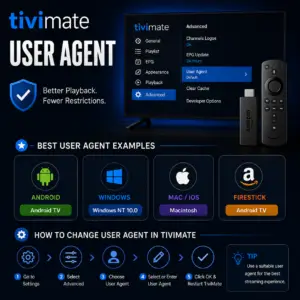
- Check if your provider requires a specific user agent — set it in Settings → Playlists → [Playlist] → User Agent
- If using Xtream Codes API, make sure the DNS and port are correct
Recordings Not Working
If TiviMate is not recording your favorite shows, check your storage setup first. TiviMate recording feature requires a compatible storage device. USB flash drives formatted as FAT32 or exFAT work best. NTFS drives are not supported on most Firestick and Android TV devices. If recordings fail, check that you have granted TiviMate storage permissions in your device settings.
Multi-Screen Not Working
If TiviMate is not showing the multi-screen option, it may be a subscription issue. Multi-screen is a TiviMate Companion premium feature. If the option is grayed out, verify that you have an active premium subscription in Settings → About. Even with premium, multi-screen performance depends heavily on your device — Firestick Lite and older Firestick models struggle with more than two simultaneous streams. Nvidia Shield handles four screens smoothly.
Error Codes Reference
When TiviMate stops working and shows an error code, use this reference to identify the problem fast:
Device-Specific Fixes
Firestick
Firestick devices have limited RAM and storage, which causes most TiviMate not working problems on this platform. Check these first:
- Storage full: Settings → My Fire TV → About → Storage — if under 200 MB free, delete unused apps
- Too many background apps: Hold the Home button → App Switcher → close everything
- Clear cache aggressively: Settings → Applications → Manage Installed Applications → TiviMate → Clear Cache, then Clear Data (you will need to re-add playlists)
- Use the right Downloader code: The current TiviMate Downloader code 272483 always points to the latest stable release
Firestick-specific guides: How to install TiviMate on Firestick.
Android TV / Google TV
- Corrupted EPG cache is the most common cause of app freezing on Android TV — clear cache in Settings → Apps → TiviMate
- If the app will not open at all, try Clear Data and re-add your playlists
- Check for Android system updates — some TiviMate versions require Android 8.0+
- If TiviMate not working after sideloading, verify the APK is from a trusted source and matches your device architecture (ARM64)
Nvidia Shield
TiviMate not working on Nvidia Shield is rare because the device handles IPTV streams well. The Shield is the most reliable device for TiviMate. Issues are rare. If you have problems, check that you are using the Hardware decoder (the Shield handles it best) and that your IPTV provider supports 4K streams if you are using them. For persistent Shield issues, the Nvidia Shield community forums are an excellent resource.
After a TiviMate Update
Occasionally a TiviMate update introduces a regression that affects certain devices. If TiviMate not working immediately after an update, clear the cache first. If that does not help, check the TiviMate subreddit community — if others have the same issue, a fix or rollback is usually available within a few days.
When to Contact Your IPTV Provider
If TiviMate itself opens and navigates fine but your channels do not work, the problem is almost certainly your IPTV provider — not the app. Contact them if:
- All channels fail to load (spinner never stops)
- You get error 401 or 403 repeatedly
- Your subscription shows as expired but you paid
- Specific channels have been down for more than a few hours
- Your playlist URL has stopped working entirely
Frequently Asked Questions
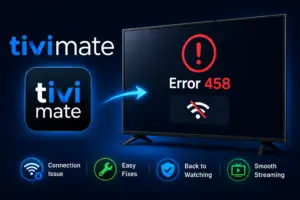
Most common causes: wrong IPTV credentials, too many connections (error 458), provider server is down, or the device storage is full. Clear cache, verify your credentials, and check if other channels work. If everything fails, restart your Firestick completely.
TiviMate keeps crashing due to insufficient storage or a corrupted cache. Usually insufficient storage or a corrupted cache. Clear TiviMate cache (Settings → Apps → TiviMate → Clear Cache), free up at least 200 MB of device storage, and restart your device. If it keeps crashing, uninstall and reinstall using Downloader code 272483.
This is a decoder issue. Go to Settings → Playback → Video Decoder and switch from Hardware to Software (or vice versa). If still broken, try using MX Player as an external player.
Try switching the video decoder first. Some audio formats (EAC3, AC3) only work with the Software decoder. Also check the Audio Track option while watching a channel — press OK on your remote and select a different track.
On Firestick, open the Downloader app, enter code 272483, and install the latest version over your existing one. On Android TV, check for updates in the Google Play Store.
Clear the app cache first. If that does not fix it, check the TiviMate community forums — other users may have the same issue. You can also roll back by uninstalling and installing the previous version from a trusted APK source.
No — TiviMate is a player only. You need an active IPTV subscription with a valid playlist URL or Xtream Codes credentials. The free version of TiviMate works as a trial with limited functionality; the premium version unlocks recording, multi-screen, and timeshift features.
If TiviMate is still not working after trying everything above, see our specific guides: buffering fixes, EPG setup, error 458, or the TiviMate APK download page for a fresh install. For official support, visit the TiviMate Google Play listing.
Sources & References
- TiviMate on Google Play — Official Android TV app listing
- tvimate.co Setup Guides — Comprehensive installation and troubleshooting guides
- Best IPTV for TiviMate — Top-rated IPTV providers reviewed for TiviMate users
- Fix TiviMate Error 458 — Too many connections fix and step-by-step troubleshooting
- TiviMate User Agent Guide — Best user agent settings to stop buffering
- TiviMate Xtream Codes Setup — How to add IPTV via Xtream API (faster than M3U)
- TiviMate Keeps Crashing? — Fix app freezes and crashes on Firestick and Android TV
- TiviMate No Sound? — Fix audio not working on Firestick and Android TV
- TiviMate Channels Not Loading — Fix channels that won't play or show black screen
- TiviMate Parental Controls — Lock channels and restrict content with PIN
- TiviMate Backup and Restore — Save settings and playlists
- TiviMate Recording Not Working — Fix recording errors