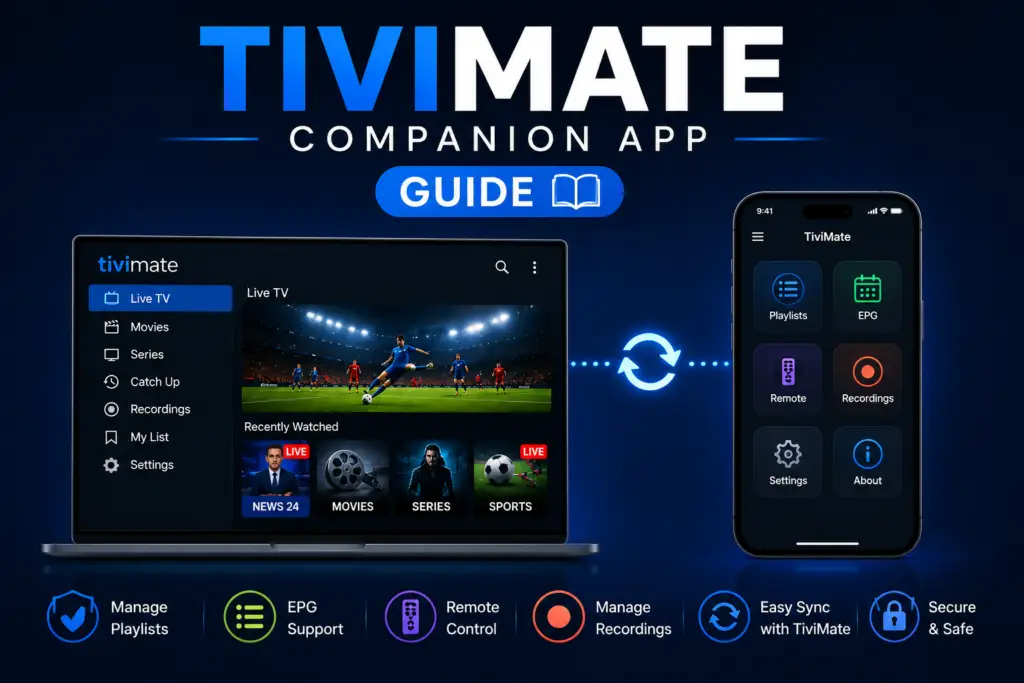
Quick Answer: The TiviMate Companion app turns your phone into a remote control for TiviMate on your TV. Install it from Google Play, sign in with your TiviMate account, and ensure both devices are on the same Wi-Fi network. The Companion app is also the only way to purchase TiviMate Premium and create an account.
TiviMate Companion App: Turn Your Phone into a Remote
The TiviMate Companion app is a free Android application that transforms your smartphone into a full-featured remote control for TiviMate. Instead of struggling with your TV remote to type channel names or browse the EPG, you can do everything from your phone with a keyboard and a touch interface.
This guide covers what the Companion app does, how to install and connect it, how to fix connection problems, and what you need to know about iPhone compatibility.
What Does the TiviMate Companion App Do?
The Companion app connects to TiviMate over your local Wi-Fi network and gives you a second screen interface. Here is what you can do with it:
- Browse channels — Scroll through your full playlist with channel logos and names displayed in a grid or list view.
- Search channels — Type the name of a channel instead of scrolling through hundreds of entries on your TV screen. The keyboard on your phone makes this instant.
- Tap to play — Tap a channel on your phone and it starts playing on your TV immediately.
- Browse the EPG — See the full program guide on your phone with detailed descriptions for each show.
- Control playback — Pause, play, rewind, and fast forward directly from your phone.
- Manage recordings — Schedule and manage recordings if you have the TiviMate Premium subscription.
- Remote control mode — Use your phone as a D-pad remote with volume and channel controls.
How to Install the TiviMate Companion App
The installation process is simple and takes under two minutes.
- Open the Google Play Store on your Android phone.
- Search for TiviMate Companion. The official app is published by AR Mobile Mobile. Look for the icon that matches the main TiviMate app.
- Tap Install. The app is approximately 20 MB and downloads over Wi-Fi or mobile data.
- Once installed, tap Open. The app starts and immediately begins scanning your local network for TiviMate devices.
Do not open the Companion app yet if your TV is not ready. Complete the connection steps below first.
How to Connect the Companion App to TiviMate
Step 1: Enable Remote Control in TiviMate
- Open TiviMate on your Android TV or Firestick.
- Go to Settings > Remote Control.
- Toggle the Remote Control option to On.
- Leave this settings screen open while you set up the Companion app. You will see a confirmation code or connection status appear.
Step 2: Connect from Your Phone
- Open the TiviMate Companion app on your phone.
- The app automatically discovers any TiviMate device on the same Wi-Fi network. Your device appears on the screen.
- Tap the device name to connect. A confirmation dialog may appear on your TV asking you to approve the connection.
- Once approved, your phone screen shows the channel browser and the remote control interface.
How to Connect Manually If Auto-Discovery Does Not Work
Auto-discovery uses mDNS (multicast DNS) to find TiviMate on your network. If your router blocks mDNS traffic or if you have a complex network setup, the Companion app may not find your device automatically. In that case, connect manually using the device IP address.
Find the IP Address of Your Android TV or Firestick
- On your Android TV, go to Settings > Network & Internet and select your active Wi-Fi or Ethernet connection. The IP address is listed there.
- On Firestick, go to Settings > Network and highlight your connected network. The IP address appears on the right side of the screen.
Enter the IP Address in the Companion App
- In the TiviMate Companion app, tap the three-dot menu or Settings icon.
- Select Manual Connection or Add Device.
- Enter the IP address of your TV device, for example
192.168.1.42. - The default port is 1111. Change it only if you configured a custom port in TiviMate settings.
- Tap Connect. The app should establish a connection immediately.
What About iPhone? Does TiviMate Companion Work on iOS?
The TiviMate Companion app is an Android-only application. There is no version available for iPhone or iPad on the Apple App Store. The developer has not announced plans to release an iOS version.
If you use an iPhone, you have limited options. Some users report partial success using the TiviMate remote control feature with third-party IP remote apps that support custom TCP connections, but these are not officially supported and often lack the full channel browsing and search features of the Companion app.
Troubleshooting Companion App Connection Problems
Do You Need Premium to Use the Companion App?
The TiviMate Companion app itself is free to download and use. However, some features require an active TiviMate Premium subscription on your TV device. Specifically, recording management, catch-up playback, and the ability to connect to multiple devices depend on the Premium tier. Basic remote control, channel browsing, and search work with the free version of TiviMate.
FAQs About the TiviMate Companion App
Yes. The app is free to download from the Google Play Store. There are no in-app purchases or subscription fees for the Companion app itself.
No. The TiviMate Companion app is only available for Android devices. There is no iOS version and no confirmed release date for one.
No. Both your phone and your TV must be connected to the same local Wi-Fi network for the Companion app to communicate with TiviMate. Remote access over the internet is not supported.
Yes. Multiple phones running the Companion app can connect to the same TiviMate device at the same time. This is useful for households where different family members want to browse channels from their own phones.
Yes. If you have installed TiviMate on your Firestick or Fire TV, the Companion app connects to it the same way it connects to any Android TV device. Enable Remote Control in the Firestick version of TiviMate and connect using the same Wi-Fi network.
Yes. The keyboard feature is one of the most useful functions of the Companion app. When TiviMate shows a text input field on your TV, the Companion app automatically opens a keyboard on your phone for easy typing.
This usually means TiviMate is not running or Remote Control is disabled on your TV. Open TiviMate, verify that Remote Control is enabled in Settings, and ensure both devices are on the same Wi-Fi network.
Sources & References
- TiviMate on Google Play — Official Android TV app listing
- tvimate.co Setup Guides — Comprehensive installation and troubleshooting guides
- Best IPTV for TiviMate — Top-rated IPTV providers reviewed for TiviMate users
- TiviMate Not Working? Fixes — 10 proven fixes for channels, audio, and crashing
- Fix TiviMate Error 458 — Too many connections fix and step-by-step troubleshooting
- TiviMate User Agent Guide — Best user agent settings to stop buffering
- TiviMate Xtream Codes Setup — How to add IPTV via Xtream API (faster than M3U)
- TiviMate Keeps Crashing? — Fix app freezes and crashes on Firestick and Android TV
- TiviMate No Sound? — Fix audio not working on Firestick and Android TV
- TiviMate Channels Not Loading — Fix channels that won't play or show black screen
- TiviMate Parental Controls — Lock channels and restrict content with PIN
- TiviMate Backup and Restore — Save settings and playlists
- TiviMate Recording Not Working — Fix recording errors