TiviMate on NVIDIA Shield: Complete Setup & Optimization Guide (2026)
Quick Answer
To set up TiviMate on NVIDIA Shield, install it from the Google Play Store (search “TiviMate”), then go to Settings > Playback and set Decoder to Hardware (HW), Audio Passthrough to On (if using a soundbar or AV receiver), and enable AI Upscaling in your Shield’s settings for sharper IPTV channels. The NVIDIA Shield is the best device for TiviMate because of its Tegra X1+ processor, AI upscaling, and full audio format support including Dolby Atmos and DTS:X. This guide covers installation, best settings, audio pass-through, multi-view performance, and a comparison with Firestick and Chromecast.
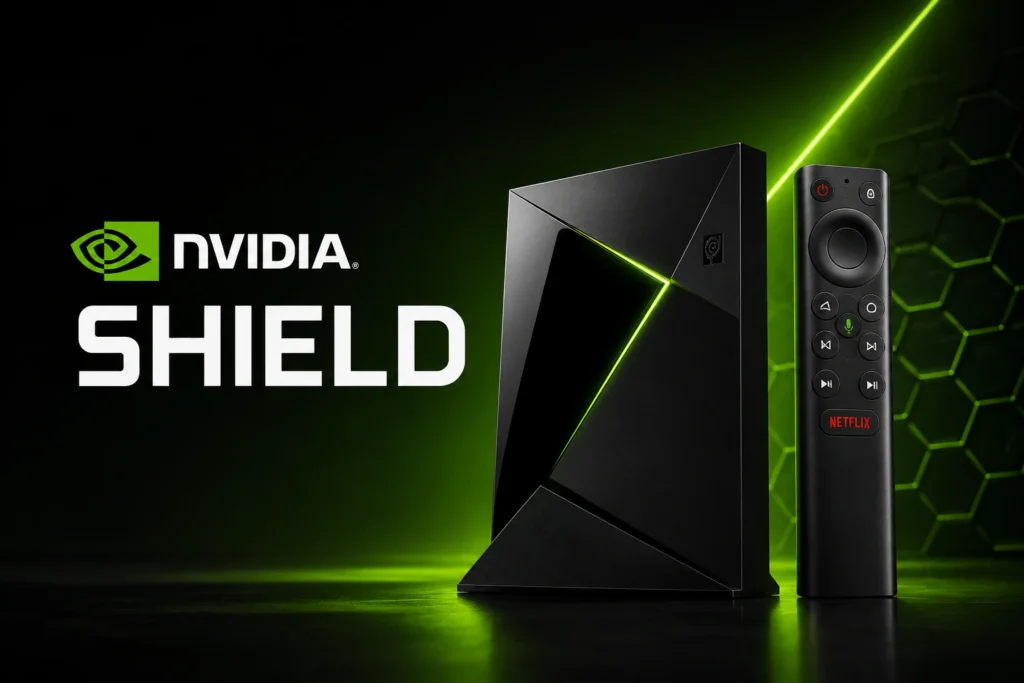
Why NVIDIA Shield Is the Best Device for TiviMate
I have run TiviMate on Firestick 4K Max, Chromecast with Google TV, and the NVIDIA Shield Pro (2019). The Shield is noticeably superior for IPTV in several ways:
- Tegra X1+ processor. The Shield’s chip handles 4K H.265 streams effortlessly. Firestick and Chromecast can stutter on high-bitrate 4K channels. The Shield does not.
- AI upscaling. Most IPTV channels stream at 720p or 1080p. The Shield’s AI upscaling enhances these to near-4K quality in real time. No other streaming device does this for live TV.
- Audio pass-through. The Shield is the only mainstream streaming device that passes through Dolby Atmos TrueHD and DTS:X lossless audio from IPTV streams to your AV receiver. Firestick and Chromecast do not.
- Multi-view performance. TiviMate’s multi-view feature (watching 2-4 channels simultaneously) demands significant processing power. The Shield runs 4-channel multi-view smoothly. Firestick struggles with 2.
- Ethernet port. The Shield has a Gigabit Ethernet port. Firestick 4K Max has 100 Mbps Ethernet. For IPTV, wired Ethernet is always superior to Wi-Fi.
If you already own a Shield, you are getting the best possible TiviMate experience. If you are choosing between devices, see the comparison table below.
How to Install TiviMate on NVIDIA Shield
There are two methods. Use the Google Play Store method if possible. Use sideloading only if you need a specific older version.
Method 1: Google Play Store (Recommended)
- On your Shield home screen, go to the Google Play Store.
- Search for TiviMate.
- Select the app by AR Mobile and click Install.
- Wait for the installation to complete. You will find TiviMate in your app drawer.
- Launch TiviMate. You will be prompted to add a playlist or start a free trial of Premium.
Method 2: Sideload the APK
Use this method if the Play Store version is not available in your region or if you need a specific version.
- On your Shield, install the Downloader app from the Google Play Store.
- Open Downloader and go to Settings > Enable JavaScript (required for some download sites).
- Enter the URL for the TiviMate APK or use the Downloader code method.
- Download the APK and click Install.
- After installation, click Open or find TiviMate in your app drawer.
Note: If you sideload, you will not receive automatic updates. You must manually download new versions. Check our how to update TiviMate guide for the latest version.
Best TiviMate Settings for NVIDIA Shield
These settings give you the best balance of performance, video quality, and audio on the Shield.
Playback Settings
| Setting | Path | Recommended Value | Why |
|---|---|---|---|
| Decoder | Settings > Playback > Decoder | Hardware (HW) | The Shield’s powerful GPU handles HW decoding easily. HW uses less CPU than SW and supports Dolby Vision and HDR10 passthrough. |
| Audio Decoder | Settings > Playback > Audio Decoder | Hardware (HW) | Lets the Shield’s dedicated audio processor handle Dolby, DTS, and AAC decoding. No need for SW decoder on Shield. |
| Audio Passthrough | Settings > Playback > Audio Passthrough | On (if you have a soundbar or AV receiver) | Sends raw Dolby Atmos TrueHD and DTS:X directly to your audio system. The Shield is one of the few devices that supports full audio passthrough. |
| Buffer Size | Settings > Playback > Buffer Size | Large (4x) or Ultra (8x) | The Shield has 2-3 GB of RAM. A larger buffer means fewer rebuffers on unstable connections. Ultra uses about 50 MB of RAM per stream, which the Shield handles easily. |
| Frame Rate Matching | Settings > Playback > Frame Rate Matching | On | The Shield supports seamless refresh rate switching. AFR works without audio drift on the Shield (unlike Firestick). |
| Deinterlacing | Settings > Playback > Deinterlacing | Auto | Handles 1080i channels (common for live sports) correctly. “Force On” can cause artifacts. “Off” leaves combing visible. |
Display Settings
| Setting | Path | Recommended Value |
|---|---|---|
| Resolution | Settings > Display > Resolution | 4K 59.94 Hz (or the highest supported by your TV) |
| Color Space | Settings > Display > Color Space | Rec.709 for SDR content, Rec.2020 if your TV supports wide color gamut |
| HDR | Settings > Display > HDR | Auto (lets the Shield match the content) |
How to Enable AI Upscaling for IPTV Channels
The Shield’s AI upscaling is its killer feature for IPTV. Most live channels broadcast at 720p or 1080i. AI upscaling sharpens them to near-4K without the artifacts of traditional upscaling.
Enable AI Upscaling
- On your Shield home screen, go to Settings > Device Preferences > AI Upscaling.
- Set AI Upscaling to On.
- Choose the upscaling level. I recommend Enhanced for IPTV. “Basic” is too subtle for 720p sources. “Advanced” can introduce over-sharpening on very low bitrate channels.
AI Upscaling Tips for IPTV
- 720p channels: AI upscaling makes the biggest difference here. Text on news channels becomes sharp and readable.
- 1080i channels: The improvement is visible but less dramatic. The deinterlacer first converts to 1080p, then AI upscales to 4K.
- 4K channels: AI upscaling is not applied to 4K content (it is already at your TV’s resolution). Leave it on anyway — it does nothing and causes no harm.
- Low-bitrate streams: AI upscaling can exaggerate compression artifacts on very low-bitrate channels. If a channel looks worse with upscaling, temporarily disable it via the Shield’s Quick Settings menu.
My experience: I keep AI Upscaling set to Enhanced permanently. On my 65-inch OLED, the difference on 720p sports channels is dramatic. Player numbers, field lines, and scoreboard text all become crisp. On a 55-inch or smaller TV, you may not notice as much difference.
Audio Pass-Through Setup (Dolby Atmos, DTS:X, TrueHD)
This is where the Shield separates itself from every other streaming device. If you have a soundbar or AV receiver that supports Dolby Atmos or DTS:X, you can get lossless surround sound from IPTV channels that broadcast in these formats.
Shield Audio Settings for Pass-Through
- Go to Settings > Device Preferences > Sound on your Shield.
- Set HDMI Audio Format to Auto (this allows the Shield to negotiate the best format with your AV receiver).
- Enable Audio Passthrough (if available in your Shield’s sound settings — varies by Shield model).
- Go to Settings > Display & Sound > Advanced Sound Settings and enable Dolby Audio Processing.
TiviMate Audio Settings for Pass-Through
- Open TiviMate and go to Settings > Playback.
- Set Audio Passthrough to On.
- Set Audio Decoder to Hardware (HW).
- Restart TiviMate completely.
Verify Atmos Is Working
While watching a channel that broadcasts in Dolby Digital Plus or Atmos, press OK on your remote. Look for the audio format indicator. If it shows Dolby Atmos or DD+ with Atmos, pass-through is working correctly.
Note: Most IPTV channels broadcast in stereo or Dolby Digital (AC3) only. Dolby Atmos channels are still rare on IPTV. However, movies and on-demand content from your IPTV provider increasingly include Atmos tracks. When available, the Shield will pass them through perfectly.
Setting Up the Companion App on Shield
The TiviMate Companion App lets you control TiviMate from your phone. On the Shield, the Companion App is especially useful because it adds a phone-based remote interface with channel search, EPG browsing, and playlist management.
- Install the TiviMate Companion App on your phone from the Google Play Store or Apple App Store.
- Ensure your Shield and phone are on the same Wi-Fi network.
- Open the Companion App and tap Connect to Device.
- Your Shield running TiviMate should appear in the device list.
- Tap to connect. Your phone now mirrors TiviMate’s interface and can control playback, change channels, and browse the EPG.
Multi-View Performance on Shield
TiviMate’s multi-view feature lets you watch up to 4 channels simultaneously. This is demanding on hardware because it requires decoding multiple video streams at once.
| Multi-View Layout | Shield Performance | Firestick 4K Max | Chromecast w/ Google TV |
|---|---|---|---|
| 2 channels (split-screen) | Flawless at all resolutions | Good, minor stutter on 4K | Good on SD/HD, stutters on 4K |
| 3 channels (1 large + 2 small) | Flawless | Stutter on HD channels | Stutter on HD, audio glitches |
| 4 channels (quadrant) | Smooth, minor lag on all 4K | Not recommended — frequent audio drops | Unusable — severe stutter |
If multi-view is important to you, the Shield is the only device that handles it well. The Firestick 4K Max can manage 2 channels but struggles with 3 or 4. Chromecast with Google TV is best limited to single-channel viewing.
For more on this feature, see our TiviMate Multi-View guide.
Shield vs Firestick 4K Max vs Chromecast for TiviMate
If you are deciding which device to buy for TiviMate, here is how they compare.
| Feature | NVIDIA Shield Pro (2019) | Firestick 4K Max | Chromecast w/ Google TV |
|---|---|---|---|
| Price | $199 | $49 | $49 |
| Processor | Tegra X1+ (256-core GPU) | MT8696 (4-core) | Amlogic S905D3 (4-core) |
| RAM | 3 GB | 2 GB | 2 GB |
| 4K H.265 decoding | Flawless | Good, occasional stutter on high bitrate | Good, stutter on very high bitrate |
| AI Upscaling | Yes (Enhanced) | No | No |
| Dolby Atmos TrueHD | Yes (full passthrough) | No (DD+ only) | No (DD+ only) |
| DTS:X | Yes | No | No |
| Multi-view (4 channels) | Smooth | Not recommended | Unusable |
| Ethernet | Gigabit | 100 Mbps | No port (USB adapter 100 Mbps) |
| USB port | Yes (2x) | No (OTG via adapter) | No (OTG via adapter) |
| Storage | 16 GB (Pro) / 8 GB (Tube) | 8 GB | 8 GB |
| Remote | IR + Bluetooth (backlit) | Bluetooth (IR volume) | Bluetooth |
My recommendation: If you have the budget and TiviMate is your primary TV app, get the Shield Pro. The AI upscaling and audio pass-through alone justify the price for daily IPTV users. If you are on a tighter budget or TiviMate is a secondary app, the Firestick 4K Max is excellent value.
Troubleshooting TiviMate on NVIDIA Shield
| Problem | Likely Cause | Solution |
|---|---|---|
| TiviMate crashes on Shield | Outdated version or corrupted cache | Go to Settings > Apps > TiviMate > Clear Cache. If still crashing, see our crashing guide. |
| No sound on some channels | Audio format not supported by passthrough | Go to TiviMate Settings > Playback > set Audio Decoder to Software (SW) temporarily. See TiviMate no sound guide. |
| AI upscaling not working in TiviMate | TiviMate runs at native resolution | AI upscaling is a Shield system feature, not a TiviMate setting. It works automatically on all apps. Verify it is enabled in Shield Settings > Device Preferences > AI Upscaling. |
| Stuttering on 4K channels | Incorrect decoder setting or network | Ensure Decoder is set to Hardware (HW). Check your network speed. Use wired Ethernet if possible. |
| Remote not controlling TiviMate | Shield remote pairing issue | Re-pair the remote: hold Home + Back for 5 seconds until LED blinks. Alternatively, use the Companion App as a backup remote. |
Frequently Asked Questions
Yes. The NVIDIA Shield Pro handles up to 4 channels in multi-view without significant performance issues. The Shield Tube (2019) handles 2-3 channels well but may stutter on 4 simultaneous 4K streams. The Shield’s Tegra X1+ processor is the only streaming device chip powerful enough for multi-view IPTV.
Yes. The NVIDIA Shield is the best device for 4K IPTV. It supports H.265 (HEVC) hardware decoding, HDR10 and Dolby Vision passthrough, and has enough processing power to handle high-bitrate 4K streams (50+ Mbps) that cause other devices to stutter. The Shield is the only device that can reliably play the highest quality IPTV streams.
The NVIDIA Shield TV Pro (2019) is the best model for TiviMate. It has 3 GB RAM (vs 2 GB on the Tube), two USB ports for external storage, Gigabit Ethernet, and the best cooling (the Tube can throttle under sustained load). The Shield TV (Tube) is sufficient for single-channel viewing but may struggle with multi-view and high-bitrate 4K.
The free version of TiviMate limits you to one playlist and five favorites. For the full Shield experience including multi-view, AI upscaling support, and unlimited playlists, you need a TiviMate Premium subscription. See our TiviMate Premium features guide and pricing page for details.
Yes, but only via Bluetooth pairing. Put your Firestick remote into pairing mode (hold Home button for 10 seconds until LED blinks), then go to Shield Settings > Remotes & Accessories > Add Accessory. The Shield supports third-party Bluetooth remotes, but the Shield remote or the TiviMate Companion App is a better experience.
Yes. TiviMate’s built-in backup and restore works on Shield. Go to Settings > General > Backup & Restore in TiviMate. Backups are stored locally on the Shield. You can copy them to a USB drive or network share. For detailed steps, see our TiviMate backup and restore guide.
