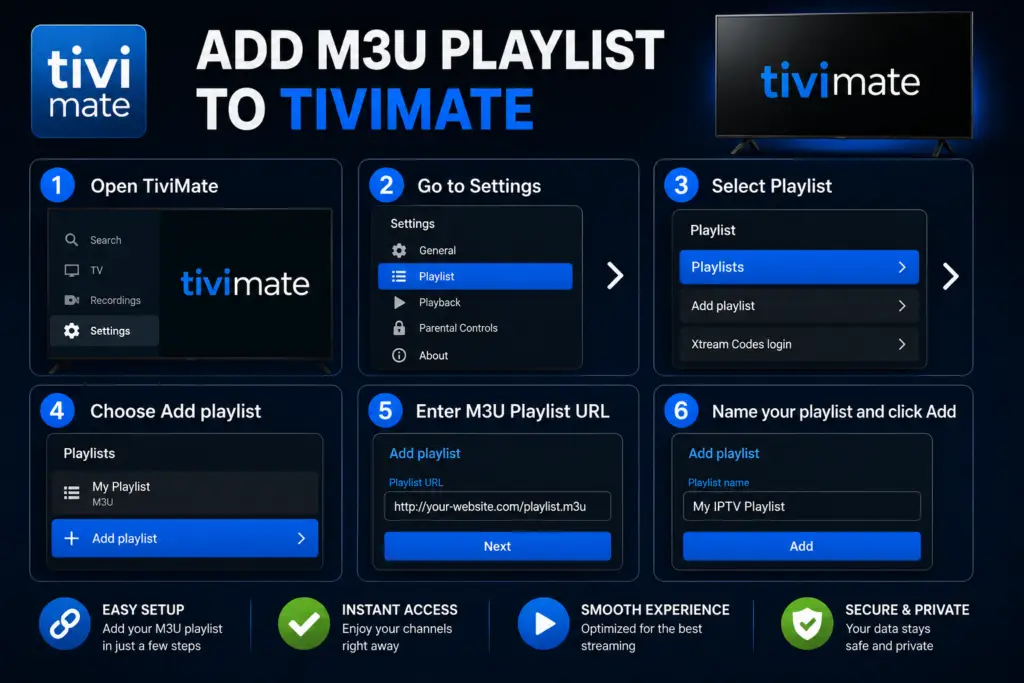
Quick Answer: To add M3U playlist TiviMate, open the app and go to Settings, open the app and go to Settings → Playlists → Add Playlist → M3U Playlist. Paste your provider’s M3U URL and tap Add. For a better experience, use Xtream Codes API instead if your provider supports it – it auto-populates the EPG and organizes channels into groups automatically.
Overview
Knowing how to add M3U playlist TiviMate setup starts here. Adding your IPTV playlist to TiviMate is the first thing you will do after installing the app. Knowing how to add M3U playlist to TiviMate correctly saves hours of frustration after installing the app. The good news is the process takes about two minutes regardless of which method you use. There are three ways to add a playlist depending on the format your IPTV provider supports: M3U URL, Xtream Codes API, or Stalker Portal.
This guide walks through each method step by step, covers how to attach EPG data, and answers the most common questions users run into.
Before You Start: Identify Your Playlist Format
Before you add M3U playlist TiviMate, check the welcome email your IPTV provider sent when you subscribed. It will contain one of three formats. Use this table to identify which one you have:
If your provider supports Xtream Codes, choose that method. It loads channels faster, updates EPG more reliably, and provides access to Video on Demand and catch-up TV automatically without extra configuration.
Tip: Most providers support Xtream Codes which loads faster and includes automatic EPG. Ask your provider for Xtream Codes credentials instead of M3U.
Method 1: Add M3U Playlist TiviMate via URL
The M3U URL method is the most common way to add IPTV to TiviMate. Your M3U URL will look something like http://provider.com:8080/get.php?username=abc&password=xyz&type=m3u_plus.
- Open TiviMate on your Android TV or Firestick.
- Select Add Playlist on the welcome screen. If you already have a playlist loaded, go to Settings > Playlist > Add Playlist.
- Choose M3U Playlist as the format.
- Paste the full M3U URL into the URL field. Make sure the link starts with
http://orhttps://and includes your credentials. - Give your playlist a name so you can identify it later if you add multiple playlists.
- Click Next and wait for TiviMate to load the channel list. This can take 10 to 30 seconds depending on the number of channels.
Once the playlist loads, TiviMate displays a preview of the channel list so you can verify everything looks correct before finalizing.
Method 2: Add a Playlist Using Xtream Codes API
Xtream Codes is the modern standard for IPTV delivery. It is faster and more reliable than M3U URLs because the server sends structured data instead of a flat text file.
- Open TiviMate and go to Settings > Playlist > Add Playlist.
- Select Xtream Codes API as the format.
- Enter the Server URL or Server IP and Port your provider gave you. The format is usually
http://provider.com:8080. - Enter your Username and Password exactly as provided. These are case-sensitive.
- Select Next. TiviMate connects to the server and retrieves the channel list, EPG data, VOD, and series information automatically.
One major advantage of Xtream Codes is that EPG data is often included in the API response, so you may not need to add a separate EPG source.
Method 3: Add M3U Playlist TiviMate Using Stalker Portal
Stalker Portal is an older protocol used primarily by MAG set-top boxes. Some IPTV providers still use it, especially for legacy subscribers.
- Open TiviMate and go to Settings > Playlist > Add Playlist.
- Select Stalker Portal as the format.
- Enter the Portal URL your provider supplied. This typically looks like
http://portal.provider.com/stalker_portal/c/. - If your provider gave you a MAC Address, enter it in the MAC field. The format should be
00:1A:79:XX:XX:XX. - Click Next and allow TiviMate to authenticate with the portal server.
Stalker Portal connections can take slightly longer to authenticate than M3U or Xtream Codes. If the connection times out, double-check the portal URL and MAC address with your provider.
How to Add EPG (Electronic Program Guide) to Your Playlist
After you add M3U playlist TiviMate, EPG data gives you the program schedule for each channel. Without it, you only see channel names with no information about what is currently playing or coming up next.
- Go to Settings > EPG > Add EPG Source in TiviMate.
- Paste the EPG URL your provider sent. This usually ends in
.xmlor.gz. Example:http://provider.com:8080/xmltv.php?username=abc&password=xyz. - Assign the EPG source to your playlist. TiviMate asks you which playlist this EPG belongs to if you have multiple playlists.
- Wait for the EPG data to download. Large providers with hundreds of channels may take 30 to 60 seconds to fully load.
- Go back to the main screen and check a few channels to confirm the program guide appears.
If you used the Xtream Codes API method, check whether EPG data loaded automatically before adding a separate EPG source.
How Many Playlists Can You Add?
Once you add M3U playlist TiviMate, know that the free version supports one playlist. If you need more than one, you need the Premium version, which supports unlimited playlists on up to five devices. This is useful if you subscribe to multiple IPTV services or want to separate live TV from VOD content into different playlists.
Troubleshooting Common Playlist Issues
Next Steps After Adding Your Playlist
After you add M3U playlist TiviMate and EPG is working, take these next steps to get the most out of TiviMate:
- Install TiviMate on all your devices. Your Premium subscription works on up to five devices. Set it up on every Android TV, Firestick, or Android device in your home so you can watch from any room. Follow the Firestick installation guide or the Android TV setup guide for step-by-step instructions.
- Set up the TiviMate Companion app. Use your phone as a remote control. The Companion app lets you browse channels, change volume, and manage playlists without needing the original remote. Install it from the Google Play Store on your phone and pair it with your device over your local network.
- Configure EPG for all playlists. If you added multiple playlists, assign an EPG source to each one. Go to Settings → EPG and verify that the program guide shows accurate data for every channel group. The EPG refreshes automatically every few hours, but you can force a refresh anytime from the same menu.
- Customize your channel list. Hide channels you never watch, reorder groups, and set favorites for quick access. Go to Settings → Playlist → Manage Groups to organize your layout. Creating a streamlined channel list makes daily browsing much faster.
- Explore advanced features. TiviMate Premium includes recording (DVR), multi-view, and catch-up TV. These features turn TiviMate into a full cable-replacement system. If you run into any issues, the troubleshooting guide covers 10 common problems and their fixes.
FAQs About Adding Playlists to TiviMate
Your IPTV provider sends the M3U URL in the welcome email after you subscribe. If you cannot find it, contact your provider’s support team and ask them to resend your playlist details.
M3U is a plain text file format that lists channel URLs. Xtream Codes is an API that provides structured data including channel names, EPG, VOD, and series categories. Xtream Codes loads faster and requires less manual setup.
Yes. With the Premium version you can mix playlist formats. You might have one provider using M3U and another using Xtream Codes, both active in the same TiviMate installation.
Yes. You can add any XMLTV EPG source including gzip-compressed files. Just paste the URL into the EPG settings and assign it to the corresponding playlist.
Open the side menu in TiviMate and select the playlist name at the top. A dropdown shows all your active playlists so you can switch between them instantly.
Yes. Go to Settings > Playlist > Manage Groups to reorder channel groups. You can also hide groups you do not watch by selecting the eye icon next to each group.
Playlists are stored locally on your device. Uninstalling TiviMate removes all playlists and settings. Make a note of your playlist URLs and EPG sources before uninstalling so you can re-enter them later.
Sources & References
- TiviMate on Google Play — Official Android TV app listing
- tvimate.co Setup Guides — Comprehensive installation and troubleshooting guides
- Best IPTV for TiviMate — Top-rated IPTV providers reviewed for TiviMate users
- TiviMate Not Working? Fixes — 10 proven fixes for channels, audio, and crashing
- Fix TiviMate Error 458 — Too many connections fix and step-by-step troubleshooting
- TiviMate User Agent Guide — Best user agent settings to stop buffering
- TiviMate Xtream Codes Setup — How to add IPTV via Xtream API (faster than M3U)
- TiviMate Keeps Crashing? — Fix app freezes and crashes on Firestick and Android TV
- TiviMate No Sound? — Fix audio not working on Firestick and Android TV
- TiviMate Channels Not Loading — Fix channels that won't play or show black screen
- TiviMate Parental Controls — Lock channels and restrict content with PIN
- TiviMate Backup and Restore — Save settings and playlists
- TiviMate Recording Not Working — Fix recording errors