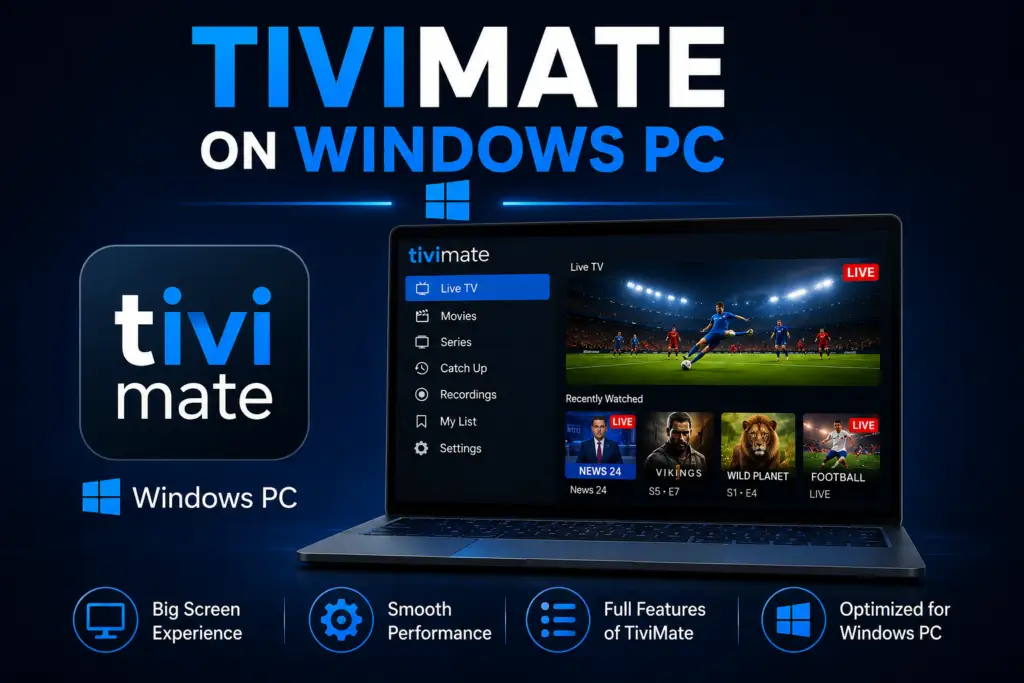
Quick Answer: TiviMate does not have a native Windows app. To run TiviMate on Windows PC in 2026, install BlueStacks 5 Android emulator, open Google Play inside BlueStacks, search for TiviMate, and install. The app runs at 1080p with smooth performance on most modern PCs with 8 GB RAM or more. Alternatively, use Windows Subsystem for Android on Windows 11.
TiviMate Windows PC Setup
TiviMate on Windows PC is possible using Android emulators. This TiviMate Windows PC guide covers two methods: BlueStacks for Windows 10 and 11, and Windows Subsystem for Android (WSA) for Windows 11.
TiviMate Windows PC users should know there is no official Windows application, and the developer has not announced plans to release one. However, you can run TiviMate on a Windows PC using an Android emulator. This guide covers the two best methods: BlueStacks for Windows 10 and 11, and Windows Subsystem for Android (WSA) for Windows 11.
Both methods allow you to use TiviMate with your keyboard and mouse, and the experience is similar to running it on a native Android TV box.
Method 1: TiviMate on Windows PC via BlueStacks
BlueStacks is the most popular Android emulator for running TiviMate on Windows PC. It is free, well-maintained, and supports the vast majority of Android apps including TiviMate.
Step 1: Install BlueStacks
- Go to the official BlueStacks website and download the latest version for Windows. The installer is approximately 1 GB.
- Run the installer. BlueStacks requires about 5 GB of free disk space and at least 4 GB of RAM. The installation takes 3 to 5 minutes on a typical system.
- Once installed, launch BlueStacks and complete the initial setup wizard. Sign in with a Google account to access the Play Store, or skip this step if you plan to sideload apps.
Step 2: Install the TiviMate APK
- Download the TiviMate APK file from a trusted source to your PC. The file is roughly 35 MB.
- In BlueStacks, click the Install APK button on the side toolbar. It looks like a folder icon with a plus sign.
- Navigate to the APK file on your computer and select it. BlueStacks installs the APK automatically.
- Once installed, the TiviMate icon appears in the BlueStacks app drawer. Click it to launch the app.
Step 3: Optimize BlueStacks for TiviMate Windows PC
BlueStacks emulates a tablet by default. For the best TiviMate experience, adjust these settings:
- Open BlueStacks Settings → Display and set the resolution to 1920 x 1080. This matches a standard TV display and makes the TiviMate interface look correct.
- Set the screen orientation to Landscape in the same settings menu. TiviMate does not support portrait mode.
- In Settings → Performance, allocate at least 4 GB of RAM and 4 CPU cores to BlueStacks if your PC can spare them. This ensures smooth channel switching and EPG browsing.
- Enable Hardware Acceleration in BlueStacks settings if your PC supports virtualization (Intel VT-x or AMD-V). This significantly improves video playback performance.
Method 2: Run TiviMate on Windows Subsystem for Android (Windows 11 Only)
For a more integrated TiviMate Windows PC experience, Windows Subsystem for Android (WSA) is Microsoft’s official solution for running Android apps on Windows 11. It integrates more naturally with the Windows desktop than BlueStacks but requires Windows 11 and is slightly more complex to set up.
Step 1: Enable Windows Subsystem for Android
- Open the Microsoft Store on your Windows 11 PC and search for Amazon Appstore.
- Click Install. The Amazon Appstore installer automatically enables WSA on your system.
- Restart your PC when prompted. The installation sets up the Android subsystem.
Step 2: Enable Developer Mode for Side-Loading
- Open the Windows Subsystem for Android app from the Start menu.
- Go to the Advanced settings tab.
- Toggle Developer mode to On. Note the IP address and port number displayed (e.g.,
127.0.0.1:58526).
Step 3: Install TiviMate via ADB (Android Debug Bridge)
- Download the Platform Tools ZIP from the Android developer website. Extract it to a folder on your PC, for example
C:platform-tools. - Open a Command Prompt or PowerShell window in that folder.
- Connect to WSA by running:
adb connect 127.0.0.1:58526(use the port number shown in your WSA settings). - Once connected, run:
adb install C:pathtotivimate.apk - When the installation completes, TiviMate appears in your Windows Start menu and can be launched like any other Windows application.
BlueStacks vs WSA: Which Method Should You Choose?
For most users, BlueStacks is the better choice because it works on both Windows 10 and 11, includes the Google Play Store, and has a simpler setup process. WSA is worth considering if you are on Windows 11 and want a more integrated experience with lower resource usage.
TiviMate Windows PC Performance Tips
- Use a wired Ethernet connection. IPTV streaming is sensitive to network fluctuations. A wired connection provides more stable throughput than Wi-Fi and reduces buffering.
- Allocate sufficient RAM to your TiviMate Windows PC setup. Both BlueStacks and WSA work best with at least 4 GB of RAM dedicated to the emulator. If your PC has 8 GB or more total RAM, this should not impact other applications noticeably.
- Enable hardware acceleration. In BlueStacks, go to Settings Engine and enable virtualization. In WSA, hardware acceleration is enabled by default when Hyper-V is active.
- Try the software decoder if TiviMate Windows PC stutters. If you experience stuttering during playback, go to TiviMate Settings → General → Video Player and select Software Decoder instead of the default hardware decoder. This shifts video processing to your CPU, which can help if your GPU driver has compatibility issues.
- Close unnecessary background apps. Emulators are resource-intensive. Close web browsers, games, and other applications while running TiviMate to free up system resources.
Native Windows Alternatives for IPTV
If you find that TiviMate through an emulator does not meet your needs, consider these native Windows IPTV applications that do not require an emulator:
- IPTV Smarters Pro – A full-featured IPTV player available as a native Windows app. Supports M3U and Xtream Codes, includes EPG, VOD, and catch-up. The interface is similar to TiviMate.
- VLC Media Player – Free and open source. Can play M3U playlists and individual IPTV streams. Does not have an EPG or channel grouping interface but is highly reliable for basic streaming.
- Kodi – A media center application with IPTV support through add-ons. Install the IPTV Simple Client add-on and point it to your M3U playlist for a TV guide experience similar to TiviMate.
FAQs About TiviMate on Windows
No. The developer has not released a Windows version of TiviMate. The only way to run it on Windows is through an Android emulator like BlueStacks or Windows Subsystem for Android.
Yes. You can run TiviMate on Windows 11 using either BlueStacks or Windows Subsystem for Android. Both methods are covered in this guide.
Yes. TiviMate Premium works in the emulated Android environment. Install the Premium APK or purchase Premium through the Play Store if you use BlueStacks. Your Premium subscription also works on your Android TV devices.
Yes. Both BlueStacks and WSA support keyboard and mouse input. BlueStacks offers customizable key mapping so you can assign keyboard shortcuts for channel switching and menu navigation.
Yes. If you have the TiviMate Companion app on your Android phone, it can connect to TiviMate running on BlueStacks or WSA as long as both your phone and PC are on the same local network.
Yes. BlueStacks is a legitimate, well-established Android emulator used by hundreds of millions of users worldwide. Download it only from the official BlueStacks website to avoid counterfeit versions.
TiviMate itself uses about 150-300 MB of RAM. However, the emulator requires additional resources to run the Android environment smoothly.
BlueStacks official site. For more information, visit the WSA Microsoft docs.
TiviMate on a Windows PC setup process is straightforward. Using TiviMate on Windows PC gives you all the features of the Android version. For the best TiviMate Windows PC experience, follow these steps.
TiviMate on a Windows PC setup process is straightforward. Using TiviMate on Windows PC gives you all the features of the Android version. For the best TiviMate Windows PC experience, follow these steps.
Sources & References
- TiviMate on Google Play — Official Android TV app listing
- tvimate.co Setup Guides — Comprehensive installation and troubleshooting guides
- Best IPTV for TiviMate — Top-rated IPTV providers reviewed for TiviMate users
- TiviMate Not Working? Fixes — 10 proven fixes for channels, audio, and crashing
- Fix TiviMate Error 458 — Too many connections fix and step-by-step troubleshooting
- TiviMate User Agent Guide — Best user agent settings to stop buffering
- TiviMate Xtream Codes Setup — How to add IPTV via Xtream API (faster than M3U)
- TiviMate Keeps Crashing? — Fix app freezes and crashes on Firestick and Android TV
- TiviMate No Sound? — Fix audio not working on Firestick and Android TV
- TiviMate Channels Not Loading — Fix channels that won't play or show black screen
- TiviMate Parental Controls — Lock channels and restrict content with PIN
- TiviMate Backup and Restore — Save settings and playlists
- TiviMate Recording Not Working — Fix recording errors