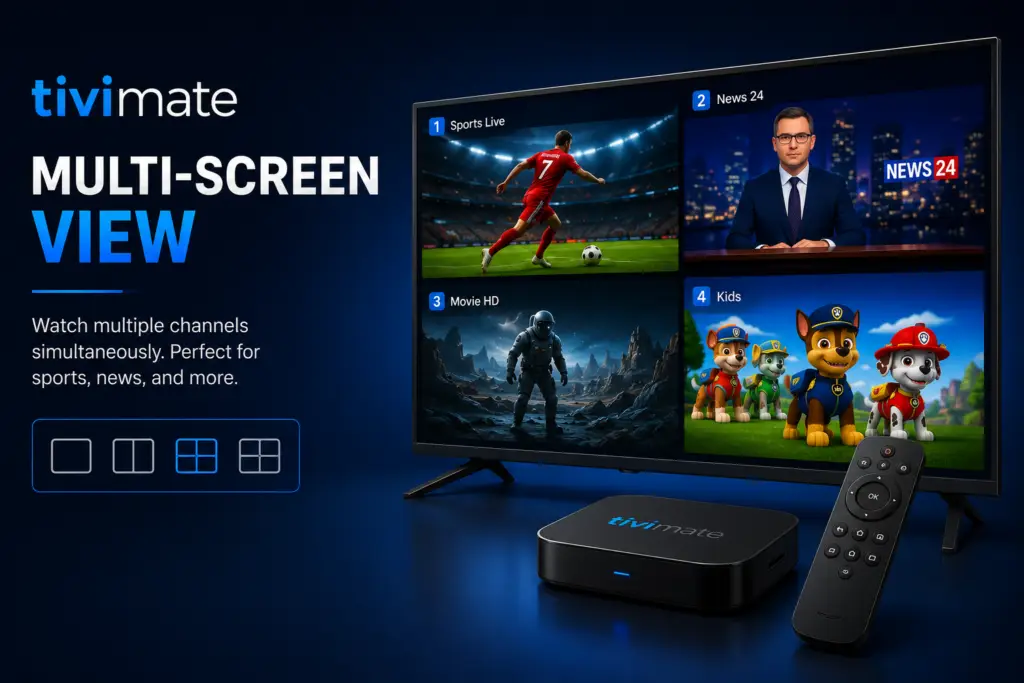
Quick Answer: To enable MultiView in TiviMate, you need TiviMate Premium. While watching a channel, press and hold the OK button on your remote, then select Multi-Screen from the menu. Choose 2, 3, or 4 channels to display simultaneously. Audio plays from the currently selected channel. This is perfect for watching multiple sports games at once.
Overview
Looking for Tivimate Multiview? TiviMate Premium includes a powerful multi-screen feature that lets you watch up to four live IPTV channels simultaneously on a single display. Whether you are tracking multiple football games, monitoring news channels, or managing security camera feeds, TiviMate’s multi-view mode transforms your viewing experience. This guide covers everything from the basics to advanced troubleshooting.
TiviMate MultiView Quick Start
Getting started with TiviMate MultiView is straightforward. Here is the fastest path:
- Long-press (press and hold) any channel in your channel list or EPG.
- Select Add to Multi-Screen from the context menu.
- The channel appears in a single panel. Repeat for additional channels (up to 4).
- Press Exit to leave multi-screen mode and return to single-channel viewing.
You can also launch multi-view directly from the EPG guide by selecting multiple programs, or via the Quick Menu during playback.
What Is Multi-Screen View?
TiviMate’s multi-screen mode is not picture-in-picture (PiP). PiP typically shows one main video with a small inset window. Multi-view splits your screen into 2, 3, or 4 equally-sized panels, each streaming a live channel independently. Every panel runs its own stream, has independent audio control, and refreshes at full frame rate.
This is a demanding feature that requires significant hardware resources — each additional stream means another simultaneous connection to your IPTV provider plus additional decoding by your device.
Requirements for Multi-Screen View
Before enabling multi-view, confirm your setup meets these requirements:
- TiviMate Premium subscription — multi-view is a Premium-only feature.
- 2 GB+ RAM device — 1.5 GB devices (standard Firestick 4K) can run 2 panels smoothly but may struggle with 3-4 panels.
- Stable internet connection — each stream consumes bandwidth independently.
- IPTV provider capacity — your provider must support multiple simultaneous connections from a single IP address.
Recommended Internet Speeds for Multi-View
These figures assume your provider delivers streams at standard bitrates. If you are streaming 4K content or using providers with higher bitrates, multiply the requirements accordingly. A wired Ethernet connection is strongly recommended over Wi-Fi for 3-4 panel setups.
How to Enable Multi-Screen View
There are three ways to enter multi-screen mode in TiviMate:
Method 1: From the Channel List
- Open your channel list by pressing OK/Select on your remote.
- Highlight a channel and long-press (hold) the OK button.
- Select Add to Multi-Screen.
- Navigate to a second channel and repeat. Continue for up to 4 channels.
- Press Back to exit your channel list — multi-screen mode activates automatically.
Method 2: From the EPG Guide
- Open the EPG guide and navigate to a future or current program.
- Long-press on the program entry.
- Select Add to Multi-Screen.
- Repeat for additional programs on different channels.
- The guide highlights selected channels with a multi-screen icon.
Method 3: From the Quick Menu (During Playback)
- While watching any channel, press OK to bring up the playback menu.
- Navigate to the Quick Menu (usually the three-dot or settings icon).
- Select Multi-Screen.
- The current channel loads as the first panel. Add additional channels from the list.
Multi-Screen Layouts
TiviMate offers several screen layout options depending on how many channels you have active:
To change the layout, press the Menu button while in multi-screen mode and select Layout. Some layouts include configurable aspect ratios and border widths.
Controls and Audio Management
Once in multi-screen mode, you have full control over each panel:
- Select a panel — press up/down/left/right to highlight a specific panel (indicated by a colored border).
- Switch audio — press OK on the selected panel to cycle audio to that channel. Only one panel outputs audio at a time.
- Mute a panel — select the panel and press the Mute button on your remote.
- Swap panels — long-press the OK button on a selected panel and choose Swap to exchange positions.
- Remove a panel — select the panel, long-press OK, and choose Remove from Multi-Screen.
- Full-screen a panel — double-press OK on the selected panel to expand it to full screen. Double-press again to return to multi-view.
- Exit multi-screen — press Back or Exit to return to single-channel viewing.
Saving Multi-Screen Layouts as Presets
One of TiviMate’s most useful multi-view features is the ability to save and name custom layouts for instant recall:
- Set up your multi-screen layout with the desired channels and arrangement.
- Press Menu while in multi-screen mode.
- Select Save Preset and give it a name (e.g., “Sports Sunday,” “News Morning,” “Camera Wall”).
- To load a saved preset later, go to Settings > Multi-Screen > Presets and select the preset name.
Presets save channel selections, layout preferences, and relative positions. This is especially valuable for recurring viewing patterns.
Performance and Optimization
Multi-screen viewing is resource-intensive. Here are optimization strategies for smooth performance:
Wired Ethernet Over Wi-Fi
Wi-Fi introduces latency and bandwidth variability. For 3-4 simultaneous streams, a wired Ethernet connection provides consistent throughput and reduces buffering.
Lower Stream Quality
In Settings > Playback, reduce the preferred resolution to 720p or lower. Four 720p streams consume less bandwidth and CPU than two 1080p streams.
Increase Buffer Size
In Settings > Playback > Buffer Size, set a larger buffer (e.g., “Large” or “Very Large”). This provides more headroom for network fluctuations.
Close Background Apps
On devices like Firestick, close other apps running in the background. Go to Settings > Applications > Manage Installed Applications > Force Stop for unnecessary apps.
Limit Panels Based on Hardware
Hardware Decoder Selection
In Settings > Playback > Decoder, try switching between hardware and software decoding. Hardware decoding is generally more efficient, but some devices perform better with software decoding for multi-stream scenarios.
Best Use Cases for Multi-View
Sports Sunday / Event Monitoring
Watch four NFL games simultaneously during the regular season. Save as a “Sports Sunday” preset for instant access each weekend.
News and Financial Monitoring
Set up CNN, BBC World News, Bloomberg, and a local news channel in a 2 – 2 grid. Ideal for staying updated without switching channels.
Multi-Language Viewing
If you have access to multiple language feeds for the same event, set up different language versions in separate panels.
Security Camera Feeds (IP Camera Feeds)
If your IPTV provider includes security camera channels, multi-view effectively creates a surveillance wall on your TV.
TiviMate Multi-Screen vs Alternatives
TiviMate is the only mainstream IPTV player that offers true multi-screen viewing with independent streams, flexible layouts, and preset saving. Competitors at any price point do not match this feature.
Troubleshooting Multi-Screen Issues
Frequently Asked Questions
TiviMate Premium supports up to 4 channels simultaneously in multi-screen mode. The free version does not include multi-screen functionality.
No. Multi-screen (multi-view) is a TiviMate Premium feature. You need an active Premium subscription at $4.99 per year to access it.
No. Only one panel outputs audio at a time. You can switch audio to any panel by selecting it and pressing OK. Other panels continue playing silently.
Yes, but with limitations. The Firestick 4K (1.5 GB RAM) handles 2 panels comfortably. The Firestick 4K Max (2 GB RAM) manages 3 panels. For the full 4-panel experience, an Nvidia Shield or similarly powerful device is recommended.
TiviMate does not officially support simultaneous recording and multi-screen viewing. The hardware demands of decoding 3-4 live streams plus encoding a recording typically exceed consumer device capabilities.
Your IPTV provider does not need a specific “multi-screen” feature, but they must allow multiple simultaneous connections from your IP address. Some providers limit connections to 1 or 2 streams — check with your provider if multi-screen does not work.
Yes. TiviMate allows you to save multi-screen layouts as named presets. Go to Menu > Save Preset while in multi-screen mode. Load presets later from Settings > Multi-Screen > Presets.
This usually means you are using the free version of TiviMate. Multi-screen is a Premium-only feature. If you already have Premium, check that your app is updated to the latest version from the Google Play Store or Amazon App Store.
TiviMate on Google Play. For more information, visit the Ookla Speedtest.
Sources & References
- TiviMate on Google Play — Official Android TV app listing
- tvimate.co Setup Guides — Comprehensive installation and troubleshooting guides
- Best IPTV for TiviMate — Top-rated IPTV providers reviewed for TiviMate users
- TiviMate Not Working? Fixes — 10 proven fixes for channels, audio, and crashing
- Fix TiviMate Error 458 — Too many connections fix and step-by-step troubleshooting
- TiviMate User Agent Guide — Best user agent settings to stop buffering
- TiviMate Xtream Codes Setup — How to add IPTV via Xtream API (faster than M3U)
- TiviMate Keeps Crashing? — Fix app freezes and crashes on Firestick and Android TV
- TiviMate No Sound? — Fix audio not working on Firestick and Android TV
- TiviMate Channels Not Loading — Fix channels that won't play or show black screen
- TiviMate Parental Controls — Lock channels and restrict content with PIN
- TiviMate Backup and Restore — Save settings and playlists
- TiviMate Recording Not Working — Fix recording errors