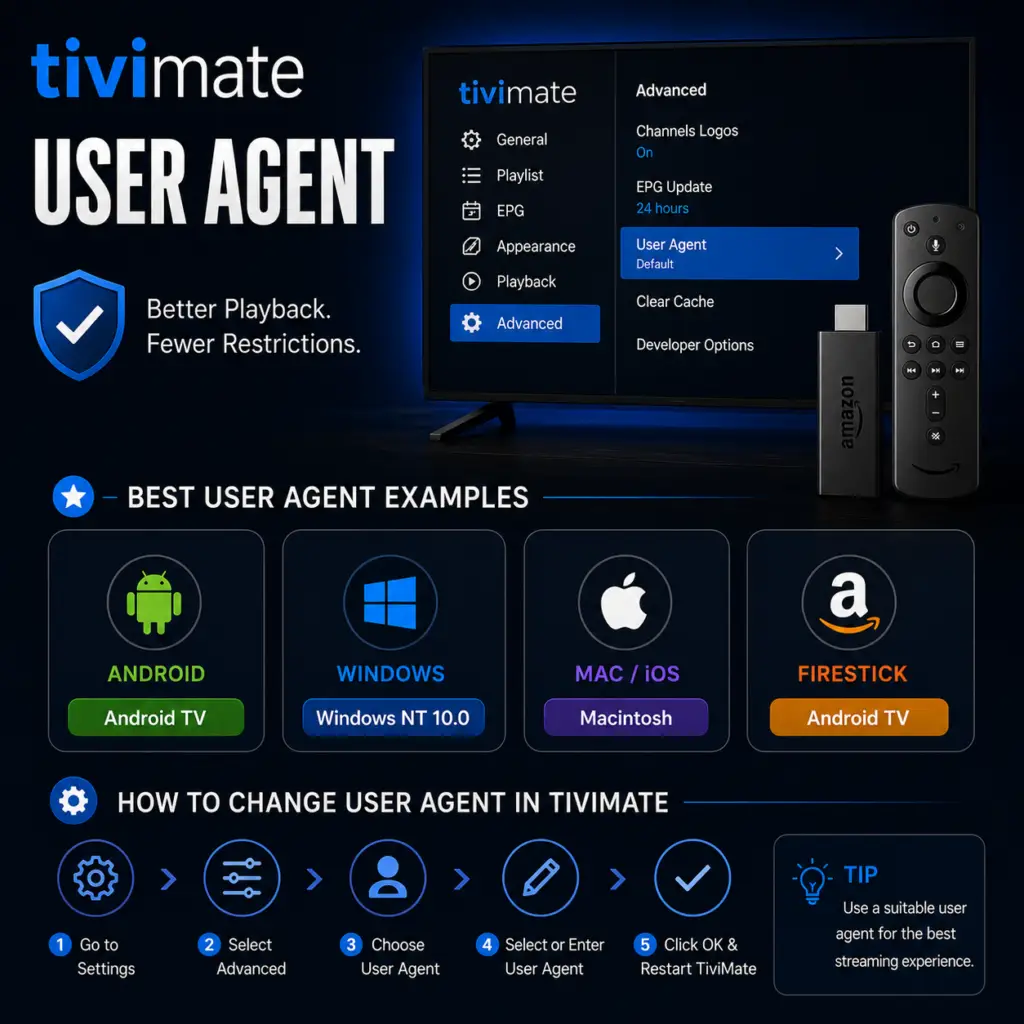
Quick Answer: To change the User Agent in TiviMate, go to Settings → Playlists → select your playlist → User Agent. Enter a common browser User Agent like Mozilla/5.0 to bypass ISP throttling. If buffering persists, try VLC/1.0. Changing the User Agent is one of the most effective fixes for buffering caused by ISP throttling.
Your TiviMate user agent settings can fix buffering instantly. If you use TiviMate and experience buffering, stuttering, channels that fail to load, or streams that stop after a few minutes, the issue may not be your internet speed or your IPTV provider — it may be your TiviMate user agent settings. Changing the user agent in TiviMate is one of the most effective yet underused fixes for IPTV buffering. It costs nothing, takes under 30 seconds, and can dramatically improve stream stability. This guide explains what the user agent does, why it affects streaming, which strings work best in 2026, and how to test them methodically.
What Is a TiviMate User Agent?
A user agent (UA) is a text string that your device sends to a server with every HTTP request. It identifies the application, operating system, device model, and browser making the request. When you stream a channel in TiviMate, the app sends a user agent to your IPTV provider’s streaming server as part of the connection handshake. This tells the server what software is requesting the stream.
By default, TiviMate sends a user agent that identifies itself as “TiviMate” or a generic Android TV media player. While this is useful for the developers during debugging, it can cause two significant problems for viewers:
- ISP throttling — Many internet service providers actively detect IPTV traffic and deliberately slow it down to manage network congestion. They can identify TiviMate by its default user agent string and apply rate limiting specifically to your IPTV streams while leaving other traffic untouched.
- Provider whitelisting — Some IPTV providers restrict playback to specific applications or device types. They maintain a whitelist of approved user agents and will reject or throttle streams from unrecognized or generic user agents.
Changing the user agent disguises TiviMate as another application — such as a web browser, VLC Media Player, or an FFmpeg streamer — making the traffic harder to identify and harder to throttle selectively.
Why TiviMate User Agent Affects Buffering
Buffering occurs when video data does not arrive at your device fast enough for smooth playback. This can happen for many reasons — slow internet, overloaded provider servers, Wi-Fi interference — but when the root cause is server-side traffic detection, changing the user agent is the most direct and effective fix.
It is important to note that a user agent change only helps if the buffering is caused by server-side identification. If your internet connection is simply too slow (under 10 Mbps for HD streams) or your Wi-Fi signal is weak, changing the user agent will not help — you need to address the underlying network issue first.
How to Change the User Agent in TiviMate
Changing the user agent in TiviMate takes less than 30 seconds. Follow these steps carefully — the option is slightly hidden:
- Open TiviMate on your Firestick, Android TV, Nvidia Shield, Onn 4K box, or Chromecast with Google TV.
- Navigate to the left sidebar and select Settings (gear icon).
- Scroll down and select Playlist.
- You will see your playlist listed with a toggle switch. Do not toggle the switch — instead, tap or click directly on the playlist name text to open its settings.
- Scroll down in the playlist settings to find the User Agent field.
- Delete the existing value (usually blank or “TiviMate”).
- Paste one of the recommended user agent strings from the table below.
- Press the Back button or select Save to confirm the change.
- Switch to another channel and then back to your test channel — the new user agent will be used for all subsequent stream requests.
Important: Each playlist has its own independent user agent setting. If you have multiple playlists from different providers, you need to change the user agent for each one separately. Changes take effect immediately on the next stream request — no app restart is required.
Best TiviMate User Agent Strings in 2026
These user agent strings have been extensively tested with TiviMate across major IPTV providers, ISPs, and devices. The most effective string depends on your specific provider and ISP, so try them in the order listed below.
Detailed Recommendations by Use Case
For most users: Start with string #1 (Android TV Chrome). It is the most widely compatible and resolves buffering for the majority of users. It mimics the traffic pattern of an Android TV device using Chrome, which ISPs rarely throttle.
If #1 does not work: Try string #2 (Windows Chrome). Desktop browser traffic is typically given the highest priority by ISPs and CDNs. This string is particularly effective at bypassing ISP throttling because it looks like someone watching YouTube or Netflix on a Windows PC.
For providers with strict whitelisting: Strings #3 (VLC) and #4 (FFmpeg) are useful fallbacks. Some IPTV providers exclusively support specific software players and will reject streams from generic Android TV user agents. If channels fail to load entirely rather than buffering, a whitelist is likely the issue, and one of these strings should resolve it.
For a complete understanding of TiviMate’s capabilities beyond user agent tuning, see our guide on what is TiviMate and how it works.
How to Test User Agent Changes Effectively
Changing the user agent is not a set-it-and-forget-it fix. Different strings work differently depending on your provider, ISP, time of day, and even the specific channel. Follow this methodical testing process:
- Identify your worst-performing channel — Pick a channel that consistently buffers, especially during evening peak hours (7“11 PM). Avoid testing on a channel that already works fine.
- Set user agent #1 — Enter the first recommended string and save.
- Watch the test channel for 5“10 minutes — Pay attention to initial load time, buffering frequency, and video quality stability.
- Rate the result — If buffering is gone or significantly reduced, you have found your working string. If not, move to the next string.
- Repeat with strings #2, #3, and #4 — Give each string the same 5“10 minute test. Sometimes the difference between a working and non-working string is just one or two words.
- Test on multiple channels — Once you find a string that works on your test channel, verify it on 2“3 other channels, ideally from different channel groups.
- Re-test after 24 hours — User agent effectiveness can vary by time of day if throttling rules change. Confirm your chosen string holds up during peak hours.
Tip: Keep a note of which string worked best for each of your playlists. If you have multiple IPTV providers, they may require different user agents. TiviMate stores the setting per playlist, so you can configure different strings for different providers.
Troubleshooting User Agent Issues
Even with the correct user agent, you may encounter issues. This table covers common problems and their solutions.
TiviMate User Agent vs VPN for Buffering
A common point of confusion is whether to use a user agent change or a VPN subscription for buffering issues. The answer depends on what is causing the buffering — they solve different problems.
Recommendation: Try the user agent fix first. It is free, takes 30 seconds, and does not reduce your connection speed the way a VPN can. If changing the user agent does not resolve the buffering, then consider a VPN. For more guidance on improving TiviMate performance on specific hardware, see our TiviMate optimization guide for Onn 4K.
Frequently Asked Questions
What is the best user agent for TiviMate?
The best all-around user agent is the Android TV Chrome browser string: Mozilla/5.0 (Linux; Android 9; AndroidTV) AppleWebKit/537.36 (KHTML, like Gecko) Chrome/120.0.6099.230 Safari/537.36. It balances compatibility with providers and effectiveness against ISP throttling.
Does changing the user agent in TiviMate really fix buffering?
Yes, if your buffering is caused by ISP throttling or provider whitelisting — which covers a large percentage of buffering cases. It is the most effective free fix available and should be the first troubleshooting step before adjusting buffer sizes or buying a VPN.
How do I reset the user agent to default in TiviMate?
Go to Settings > Playlist > tap your playlist name > User Agent > delete the entire string and leave the field blank > press Save. TiviMate will revert to its built-in default user agent.
Can I use a different user agent for each IPTV playlist?
Yes. Each playlist in TiviMate has its own independent user agent setting. You can have different strings for different providers, which is useful if you subscribe to multiple IPTV services with different requirements.
Will changing the user agent affect my EPG or catch-up?
No. The user agent setting applies only to stream requests for live and catch-up content. EPG data fetching uses a separate mechanism and is not affected by the playlist user agent.
Does a user agent change work on Firestick and Android TV the same way?
Yes. The setting, behavior, and available options are identical across all TiviMate-compatible devices — Firestick, Nvidia Shield, Onn 4K box, Chromecast with Google TV, and any Android TV box.
Is changing the user agent safe? Could it get me banned?
Changing the user agent is completely safe. You are only changing what text string TiviMate sends to identify itself — the same way a web browser identifies itself to websites. No legitimate IPTV provider will ban you for changing your user agent. If a string does not work, simply revert to the default or try another one.
Final Thoughts
The user agent is a small, often overlooked setting that can make a dramatic difference in your TiviMate streaming experience. Before upgrading your internet plan, buying a VPN, or switching IPTV providers, take 30 seconds to change the user agent. In many cases, it resolves buffering that no other setting can fix because it addresses the root cause — server-side traffic detection. Keep a copy of the four recommended strings above and test them methodically until you find the one that works best with your provider and ISP. For more TiviMate optimization tips, see our guides on what TiviMate offers and understanding IPTV legality.
WhatIsMyBrowser user agent tool. Ookla Speedtest.
Sources & References
- TiviMate on Google Play — Official Android TV app listing
- tvimate.co Setup Guides — Comprehensive installation and troubleshooting guides
- Best IPTV for TiviMate — Top-rated IPTV providers reviewed for TiviMate users
- TiviMate Not Working? Fixes — 10 proven fixes for channels, audio, and crashing
- Fix TiviMate Error 458 — Too many connections fix and step-by-step troubleshooting
- TiviMate Xtream Codes Setup — How to add IPTV via Xtream API (faster than M3U)
- TiviMate Keeps Crashing? — Fix app freezes and crashes on Firestick and Android TV
- TiviMate No Sound? — Fix audio not working on Firestick and Android TV
- TiviMate Channels Not Loading — Fix channels that won't play or show black screen
- TiviMate Parental Controls — Lock channels and restrict content with PIN
- TiviMate Backup and Restore — Save settings and playlists
- TiviMate Recording Not Working — Fix recording errors