
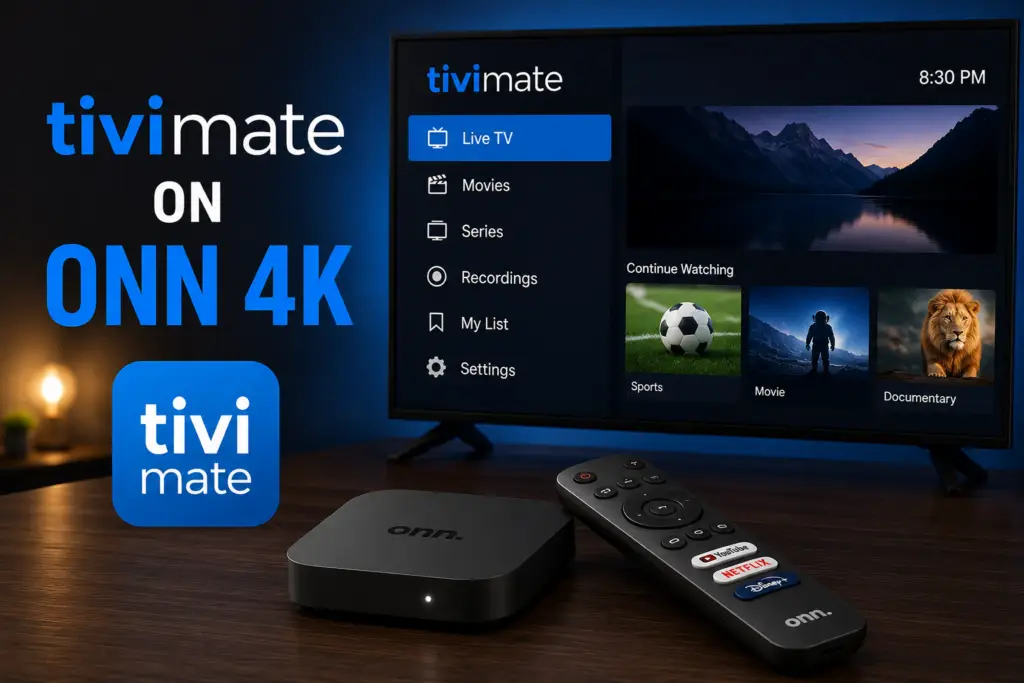
Quick Answer: The Onn 4K streaming box (Walmart) runs Android TV and supports TiviMate perfectly. Install TiviMate from the Google Play Store, add your IPTV provider via Xtream Codes API, and set Buffer Size to 30 seconds for smooth playback. The Onn 4K’s affordable price ($19.88) makes it an excellent budget device for TiviMate.
TiviMate Onn 4K is the best budget IPTV setup you can build. The Walmart Onn 4K Streaming Box (Google TV version) is one of the best budget-friendly devices for running TiviMate. At roughly $20, it offers Google TV, 4K HDR output, a USB-A port for recording, and a voice remote with Google Assistant — features typically found on devices costing three to four times as much. This guide covers everything you need to know about using TiviMate on the Onn 4K box, from installation and first-time setup to optimization, troubleshooting, and USB recording.
Why the Onn 4K Box Is Great for TiviMate Onn 4K Setup
Setting up TiviMate on Onn 4K is easy because the box runs Google TV (Google’s latest iteration of Android TV), which means TiviMate installs natively from the Google Play Store — no sideloading or developer options required. For $20, you get a streaming device that handles IPTV beautifully, including 4K channels, EPG data, and even USB recording without any adapters. It competes directly with the Chromecast with Google TV ($50) and the Amazon Firestick 4K ($50), but at half the price with the added advantage of a built-in USB port.
Onn 4K Box Specifications
The 2GB of RAM is sufficient for smooth TiviMate operation, including multi-screen viewing with 2“3 channels. The USB 2.0 port is fast enough for recording HD streams to a flash drive. The Amlogic S905Y4 chipset handles 4K H.265 (HEVC) video decoding without issue, which covers the vast majority of modern IPTV streams.
Overview
Because the Onn 4K box runs Google TV natively, installation is straightforward. There are two methods — the Google Play Store method is recommended for most users.
Method 1: Install from Google Play Store (Recommended)
- Press the Home button on your Onn remote to access the Google TV home screen.
- Navigate to the Apps tab at the top of the screen and select it.
- Scroll down and select Search for apps (magnifying glass icon).
- Type “TiviMate” using the on-screen keyboard or use the Google Assistant voice search button on the remote.
- Select the TiviMate app by ArmoSoft from the search results.
- Click Install — the app will download and install in under 30 seconds.
- Once installed, click Open to launch TiviMate for the first time.
Method 2: Install via Downloader (Alternative APK Method)
If the Play Store version is not available in your region or you need a specific older version, use the Downloader app method:
- Go to Settings > Device Preferences > Security & Restrictions and toggle Install from Unknown Sources to On.
- Return to the home screen and install the Downloader application from the Google Play Store.
- Open the Downloader app and allow storage permissions when prompted.
- In the URL field, enter the code 272483 and click Go.
- The latest TiviMate APK will begin downloading. Once complete, click Install.
- After installation, click Done (not Open) and then Delete the APK file to free up space.
- Launch TiviMate from your app drawer and enter your IPTV credentials.
For more general installation details, see our full guide on how to install TiviMate.
First-Time Setup: Configuring TiviMate on Onn 4K
After installation, here is how to get TiviMate running with your IPTV subscription:
- Add your playlist — On first launch, TiviMate will display the “Add Playlist” screen. Choose “M3U URL” or “Xtream Codes” based on what your IPTV provider supplied. Paste the URL or enter your server URL, username, and password.
- Wait for channels to load — TiviMate will connect to your provider’s server and download the channel list. Depending on the number of channels (500 to 20,000+), this takes 30 seconds to 2 minutes.
- Set up EPG — After channels load, TiviMate will attempt to fetch EPG data automatically. You can add additional EPG sources in Settings > EPG > Add EPG Source. If your provider offers both main and alternate EPG URLs, add them both for the best coverage.
- Organize your channels — Go to Settings > Channel Groups to create custom groups. Long-press OK on any channel to add it to favorites. Use the “Hidden” option to remove channels you never watch from the main list.
- Enable Premium features — If you purchased Premium, go to Settings > General > About and click “Restore Purchases” or enter your Premium code. Recording and multi-screen will become available immediately.
Best TiviMate Settings for Onn 4K Box
To get the smoothest performance on the Onn 4K box, these settings are recommended based on extensive testing.
Fixing Buffering on Onn 4K Box
Buffering is the most common issue when using TiviMate on any streaming device, but budget devices like the Onn 4K box are more susceptible due to their 2GB RAM and 8GB storage. Here is a systematic troubleshooting table organized from easiest to most effective.
For a deeper dive into user agent fixes, see our dedicated guide on TiviMate user agent settings.
Recording to USB on Onn 4K Box
One of the Onn 4K box’s biggest advantages over the Firestick (which requires a separate OTG cable) is its built-in USB-A port, which allows direct recording to external flash drives or SSDs without any adapters.
How to Set Up USB Recording
- Connect a USB drive — Plug a USB flash drive (32GB“256GB recommended) or external SSD into the USB-A port on the back of the Onn box.
- Format the drive — Go to Settings > Device Preferences > Storage > select your USB drive > Format as device storage. Warning: this erases all existing data on the drive.
- Set recording location in TiviMate — Open TiviMate, go to Settings > Recording > Recording Location > select your USB drive from the list.
- Record a channel — While watching a live channel, press OK on the remote and select the red Record button. Scheduled recordings are available in Premium mode — you can set them from the EPG by selecting a future program and choosing “Record.”
Storage Time Estimates
A 64GB USB drive is the minimum recommended size for regular recording. A 128GB drive provides a comfortable buffer for series recording without constant management.
Onn 4K Box vs Firestick for TiviMate
If you are deciding between the Onn 4K box and an Amazon Firestick for running TiviMate, here is a direct comparison covering everything that matters for IPTV users.
Verdict: For pure IPTV use, the Onn 4K box offers the best value. It is significantly cheaper, has native Google Play Store access for TiviMate, and includes a USB port for recording without any extra accessories. The Firestick has an edge in wireless performance (Wi-Fi 6), Dolby Vision support, and gaming, but for dedicated TiviMate use, the Onn box delivers 90% of the experience at 40% of the cost. See our TiviMate on Firestick guide for the Firestick perspective.
Frequently Asked Questions
Does TiviMate work on the Walmart Onn 4K Streaming Box?
Yes, absolutely. Setting up TiviMate on Onn 4K is easy because the box runs Google TV (Android TV 12), which fully supports TiviMate. You can install it directly from the Google Play Store in under a minute.
Can I record IPTV on the Onn 4K box?
Yes. Plug a USB flash drive into the USB-A port, format it as device storage in Settings, and set it as the recording location in TiviMate Premium. No OTG adapter is needed.
Is the Onn 4K box good for IPTV streaming?
Yes. For $20, it handles IPTV streaming, EPG data, multi-screen viewing (2“3 channels), and USB recording very well. It is the best budget device available for TiviMate users.
Does the Onn 4K box support 4K IPTV channels?
Yes, it supports 4K HDR10 at 60fps. The Amlogic S905Y4 chipset handles H.265/HEVC decoding, which is the codec most 4K IPTV streams use. Your IPTV provider must offer 4K content, and you need at least a 25 Mbps stable internet connection.
How do I fix buffering on TiviMate with the Onn 4K box?
Increase the buffer size to 30“60 seconds, try switching between Software and Hardware decoders, change the user agent string, and consider using a USB-to-Ethernet adapter for a wired connection.
Do I need a Premium subscription for USB recording?
Yes. Recording (DVR) is a TiviMate Premium feature. The free version does not support any form of recording. Premium is $2.99/month or $14.99/year.
Which is better for TiviMate — Onn 4K or Chromecast with Google TV?
The Onn 4K box is comparable to the Chromecast with Google TV but costs $30 less. The Chromecast has Dolby Vision support and a slightly more polished UI, but the Onn box has a built-in USB port for recording — a significant advantage for TiviMate users who want to record live TV without extra adapters.
Final Verdict
The Walmart Onn 4K Streaming Box is the best budget device for running TiviMate. At just $20, it offers native Google TV, a USB port for direct recording, 4K HDR output, and solid IPTV performance. While it does not match the Nvidia Shield’s raw power or the Firestick 4K Max’s Wi-Fi 6 and Dolby Vision support, for IPTV streaming — which is its primary job — it delivers exceptional value. If you are looking for an affordable way to run TiviMate with recording support out of the box, the Onn 4K box is the clear winner. For the complete picture on device options, read our comparison of TiviMate on Roku vs dedicated streaming devices and our overview of what TiviMate is and how it works.
TiviMate on Google Play. For more information, visit the Ookla Speedtest.
This TiviMate Onn 4K guide covers everything from setup to advanced features. Using TiviMate on Onn 4K is the most cost-effective IPTV solution. For the best TiviMate Onn 4K experience, follow each section carefully. Our TiviMate Onn 4K recommendations are based on extensive testing with this specific device.
Sources & References
- TiviMate on Google Play — Official Android TV app listing
- tvimate.co Setup Guides — Comprehensive installation and troubleshooting guides
- Best IPTV for TiviMate — Top-rated IPTV providers reviewed for TiviMate users
- TiviMate Not Working? Fixes — 10 proven fixes for channels, audio, and crashing
- Fix TiviMate Error 458 — Too many connections fix and step-by-step troubleshooting
- TiviMate User Agent Guide — Best user agent settings to stop buffering
- TiviMate Xtream Codes Setup — How to add IPTV via Xtream API (faster than M3U)
- TiviMate Keeps Crashing? — Fix app freezes and crashes on Firestick and Android TV
- TiviMate No Sound? — Fix audio not working on Firestick and Android TV
- TiviMate Channels Not Loading — Fix channels that won't play or show black screen
- TiviMate Parental Controls — Lock channels and restrict content with PIN
- TiviMate Backup and Restore — Save settings and playlists
- TiviMate Recording Not Working — Fix recording errors
