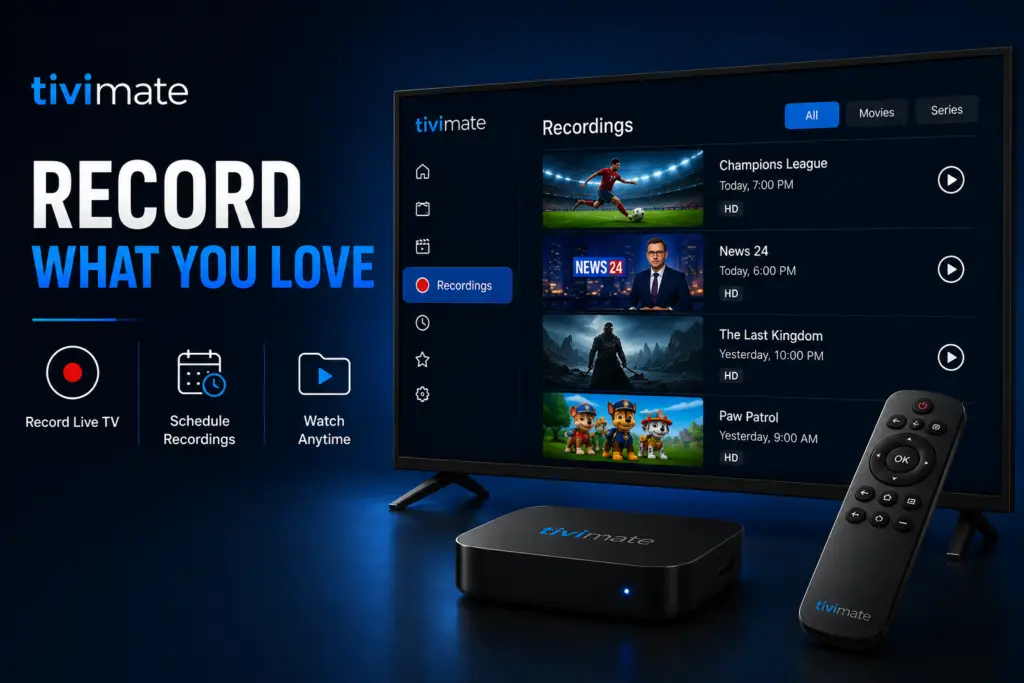
Quick Answer: To record live TV with TiviMate, you need TiviMate Premium and external storage (USB drive or network share). Go to Settings → Recordings → Recording Storage, select your storage device, then press and hold OK on any channel in the EPG and select Schedule Recording. Recordings save as TS files playable on any device.
Overview
TiviMate recording is a premium feature that includes a full-featured DVR system. It lets you record live IPTV channels, schedule recordings from the electronic program guide, and watch recordings on any device. This guide covers everything from setup to advanced recording management.
TiviMate Recording Quick Start
If you just want to record the current channel immediately:
- Press OK/Select on your remote while watching a live channel.
- Navigate to Menu > Record.
- Select Record Current Program for the full remaining duration, or choose Custom to set a specific end time.
- The red recording indicator appears at the top of the screen confirming the recording is active.
That is all it takes. But TiviMate’s recording capabilities go far deeper. The sections below cover scheduled recordings, storage configuration, background recording, and advanced management.
Requirements for TiviMate Recording Setup
Before you can record, ensure your setup meets these requirements:
- TiviMate Premium subscription — recording is a Premium-only feature. The free version does not include DVR functionality.
- Storage device — internal storage works, but an external USB drive is recommended for longer recordings.
- Live channel availability — you can only record actively available live channels. You cannot record VOD content.
- EPG data — scheduled recordings from the guide require accurate EPG information for your channels.
- Sufficient storage space — recordings consume significant space, especially at higher qualities.
Storage Requirements and Setup
Recording Sizes by Quality
Recommended Storage Capacities
Setting Up Storage for Recordings
Internal Storage
TiviMate can save recordings directly to your device’s internal storage. This works well for short recordings but fills up quickly. On Firestick devices with only 8 GB of total storage, you may only have 4-5 GB available after system files and apps — enough for approximately 2 hours of HD recording.
External USB Drive
For serious recording, a USB drive is essential. Follow these steps:
- Format your USB drive as FAT32 or exFAT (NTFS is not recommended for TiviMate).
- Connect the drive to your streaming device via USB OTG cable or USB hub (for Firestick, use a powered USB hub or OTG cable with external power).
- On Firestick: the drive may not auto-mount. Install a file manager app to verify the drive is detected.
- Open TiviMate > Settings > Recording > Recording Storage.
- Select your USB drive from the list. If it does not appear, try reconnecting the drive or restarting TiviMate.
- Create a dedicated folder for TiviMate recordings to keep files organized.
USB Connection by Device
Schedule TiviMate Recordings from the EPG
Scheduling recordings from the program guide lets you record future shows without manual intervention:
- Open the EPG by pressing the OK/Select button and navigating to the Guide view.
- Long-press (press and hold) on any future program in the guide.
- Select Schedule Recording from the context menu.
- Choose Record this episode (one-time) or Record series (recurring).
- Optionally adjust Start earlier and End later padding (recommended: 2-5 minutes each side to avoid missing content).
- Confirm — the program now shows a red recording icon in the EPG.
To view all scheduled recordings, go to Settings > Recording > Scheduled Recordings.
Background Recording — Watch While You Record
TiviMate supports background recording. When a recording is active, you can change channels freely — the recording continues unaffected in the background. This allows you to:
- Record one channel while watching another live.
- Start a recording, switch to a different program, and come back to the recorded content later.
- Set up multiple scheduled recordings and watch any channel during the recording window.
The only limitation is your device’s hardware. Devices with less than 2 GB of RAM may struggle with simultaneous playback and recording, especially for HD streams.
Managing Your Recordings
Access all your recordings from the main menu by navigating to Recordings. From this screen you can:
- Play any recording directly within TiviMate.
- Delete recordings to free up space.
- Rename recordings for easier identification.
- View recording details (date, duration, file size, channel).
How Many Recordings Can Run at Once?
The actual limit depends on your IPTV provider’s server capacity and your internet connection speed. Each recording stream consumes bandwidth independently.
Recording File Format and Playback
TiviMate records in the .ts (MPEG-TS) format — a standard Transport Stream container. Key characteristics:
- No DRM or encryption — recordings are standard TS files playable on any device.
- 4 GB file segmentation — long recordings are split into 4 GB segments (FAT32 file size limit). TiviMate handles playback seamlessly across segments.
- VLC-compatible — you can copy TS files to a computer and play them in VLC, Kodi, or any media player that supports the format.
- Metadata preserved — channel name, program title, and recording date/time are embedded in the file metadata.
TiviMate DVR vs Alternatives
TiviMate offers the best value-for-money DVR solution in IPTV. While Channels DVR and Plex Pass offer more robust server-based recording (especially for multi-room setups), their annual cost is 12-19 times higher. For a single-home setup with one or two devices, TiviMate’s DVR is more than sufficient.
Troubleshooting TiviMate Recordings
Frequently Asked Questions
Yes. TiviMate Premium includes a complete DVR system that records live TV channels to internal or external storage. You can record the current program, schedule future recordings from the EPG, and set up series recording for recurring shows.
No. DVR recording is a TiviMate Premium feature. The free version of TiviMate does not include any recording functionality. Recording requires an active Premium subscription at $4.99 per year.
Yes. TiviMate supports background recording — you can change channels freely while a recording is in progress. The recording continues unaffected. Performance depends on your device’s RAM and processor.
TiviMate supports limited simultaneous recordings based on your device hardware. Most devices handle 1-2 concurrent recordings. The Nvidia Shield can manage 2-3. Your IPTV provider’s bandwidth limits also apply.
HD recordings consume approximately 1.35-1.8 GB per hour. A 32 GB USB drive holds about 18 hours of HD content. For regular recording, a 64 GB or 128 GB USB drive formatted as FAT32 or exFAT is recommended.
Common causes: the drive is formatted as NTFS (use FAT32 or exFAT instead), the Firestick lacks power for the drive (use a powered USB hub), or the drive needs to be mounted first through a file manager app.
Some IPTV providers restrict or block recording at the server level, usually through stream authentication tokens that expire. If recordings fail consistently across all channels, your provider may have recording restrictions in place. Contact your provider to confirm.
TiviMate records in.ts (MPEG-TS) format. Files are playable within TiviMate, in VLC media player, and in most video players that support the Transport Stream container format. Long recordings are split into 4 GB segments.
Sources & References
- TiviMate on Google Play — Official Android TV app listing
- tvimate.co Setup Guides — Comprehensive installation and troubleshooting guides
- Best IPTV for TiviMate — Top-rated IPTV providers reviewed for TiviMate users
- TiviMate Not Working? Fixes — 10 proven fixes for channels, audio, and crashing
- Fix TiviMate Error 458 — Too many connections fix and step-by-step troubleshooting
- TiviMate User Agent Guide — Best user agent settings to stop buffering
- TiviMate Xtream Codes Setup — How to add IPTV via Xtream API (faster than M3U)
- TiviMate Keeps Crashing? — Fix app freezes and crashes on Firestick and Android TV
- TiviMate No Sound? — Fix audio not working on Firestick and Android TV
- TiviMate Channels Not Loading — Fix channels that won't play or show black screen
- TiviMate Parental Controls — Lock channels and restrict content with PIN
- TiviMate Backup and Restore — Save settings and playlists
- TiviMate Recording Not Working — Fix recording errors